1
MAKING COLOUR COPIES (Colour Mode)
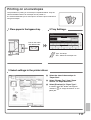
When colour and black & white originals are mixed together, you can
have the machine automatically detect whether each original is colour
or black & white and make each copy accordingly.
The procedure for copying with the colour mode set to "Auto" for
automatic detection of colour and black & white is explained below.
Original
The side to be scanned must be face up!
1
Copy
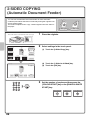
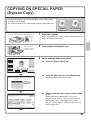
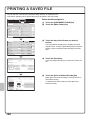
Place the originals.
When using the document glass, place the original with the
side to be scanned face down.
Special Modes
Colour Mode
Full Colour
2
2-Sided Copy
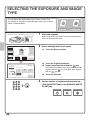
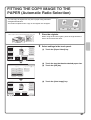
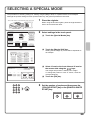
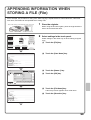
(1) Touch the [Colour Mode] key.
Plain
A4
(1)
Exposure
1.
2.
3.
4.
Auto
A4
A4R
B4
A3
Select settings in the touch panel.
Output
File
Quick File
Copy Ratio
Original
Paper Select
100%
Auto
Auto
A4
Plain
A4
Colour Mode
Preview
(2) Touch the [Auto] key.
OK
(3) Touch the [OK] key.
(3)
Full Colour
Single Colour
Auto
2 Colour
(2)
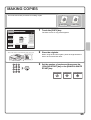
3
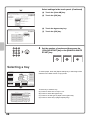
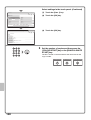
Set the number of copies and press the
[COLOUR START] key.
Correct sets
Cancel scanning
Cancel copying
29