1
122
Kaspersky Anti-Virus for Windows Workstations 6.0
well as any utilities established on the computer. Malicious programs,
attempting to mask their presence in the system, copy incorrect values in
registry keys. Kaspersky Anti-Virus analyzes system registry entries for
suspicious values.
•
Suspicious system activity. The program analyzes actions executed by
Microsoft Windows and detects suspicious activity. An example of
suspicious activity would be an integrity breach, which involves modifying
one or several modules in a monitored application since the time it was
last run.
•
Keylogger detection. This activity is used in attempts by malicious
programs to read passwords and other confidential information which you
have entered using your keyboard.
•
Microsoft Windows Task Manager protection. Kaspersky Anti-Virus
protects Task Manager from malicious modules injecting themselves into
it when aimed at blocking Task Manager operation.
The list of dangerous activities can be extended automatically by the Kaspersky
Anti-Virus for Windows Workstations update process, but it cannot be edited by
the user. You can:
•
Turn off monitoring for an activity by deselecting the
•
Edit the rule that Proactive Defense uses when it detects a dangerous
activity
•
Create an exclusion list (see 6.3 on pg. 71) by listing applications that you
do not consider dangerous.
next to its name
To configure activity monitoring,
1.
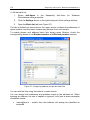
Open the Kaspersky Anti-Virus for Windows Workstations settings
window by clicking Settings in the main program window.
2.
Select Proactive Defense in the settings tree.
3.
Click the Settings button in the Enable Application Activity Analyzer
section.
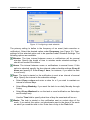
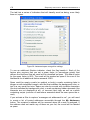
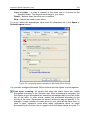
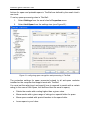
The types of activity that Proactive Defense monitors are listed in the Settings:
Application Activity Analyzer window (see Figure 33).