1
SensorConnect™ Quick Start Guide
CONNECTING TO DEVICES
SensorConnect automatically detects any LORD MicroStrain device plugged
into an active port. Device connections are managed on the Devices page.
the device list. These notifications provide information about device
performance, such as communication and sampling status. Green
notifications typically indicate confirmed actions, while orange notifications
indicate information that may require further action.
COLLECTING DATA
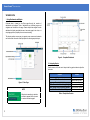
Data sampling is initiated for each device through its device menu. For a
WSN, sampling can also be started for the entire network by initiating
sampling from the network gateway menu. The sampling menu options vary
depending on the type of device.
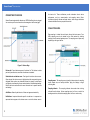
Figure 2 - Devices Page
Devices list - Found devices appear in the device list. This list also includes
previously found devices, even when the software is restarted.
Selected device and device menu - Each type of device has its own menu.
Once selected, the device name is highlighted and the corresponding menu
displayed. Menu options vary between devices but typically include device
configuration, start sampling, sensor mode selections, and data downloading.
Refer to the device user manual for more information on its specific features
and settings.
Add Device - Manually add a device if it does not appear automatically.
Notifications - Important information specific to a device or in response to a
requested action appears in the device menu or next to the device name in
2
Sampling menu - The sampling menu typically includes options for sampling
mode, sample rate, and sample duration. Apply the settings to begin
collecting data.
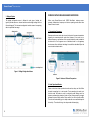
Sampling indicator - The sampling indicator shows when data is being
collected from the device. At slow sampling rates it will turn on and off as
readings are taken, while at fast sampling rates it will be on continuously.