1
D3PLOT
User manual Version 11.0, March 2013
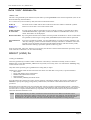
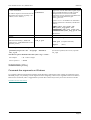
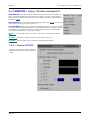
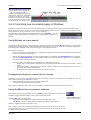
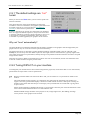
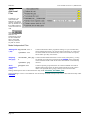
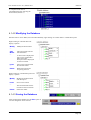
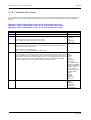
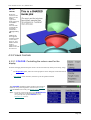
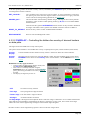
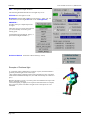
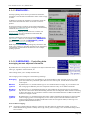
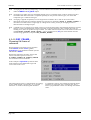
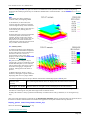
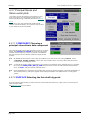
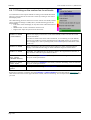
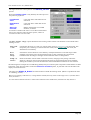
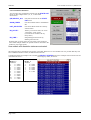
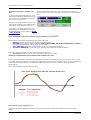
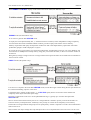
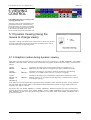
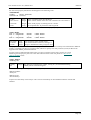
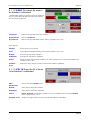
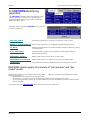
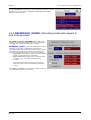
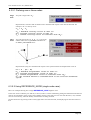
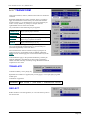
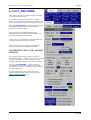
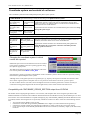
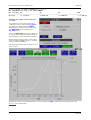
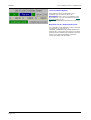
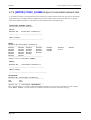
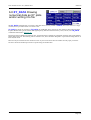
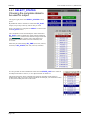
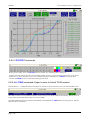
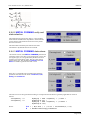
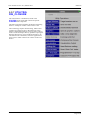
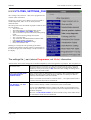
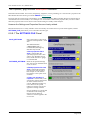
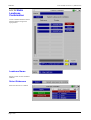
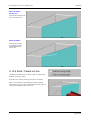
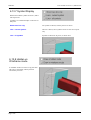
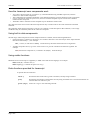
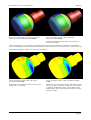
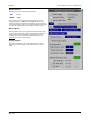
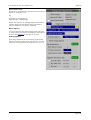
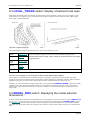
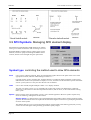
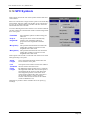
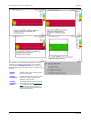
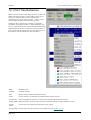
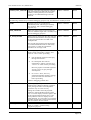
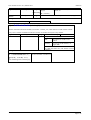
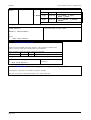
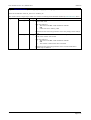
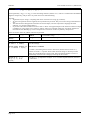
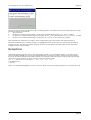
6.1.1.4 UPDATE LEVEL Image
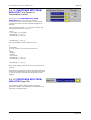
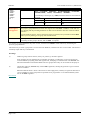
update frequency
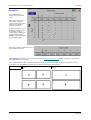
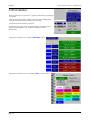
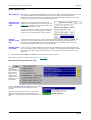
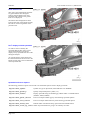
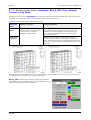
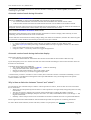
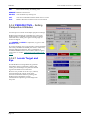
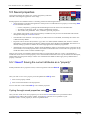
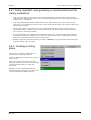
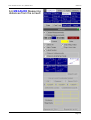
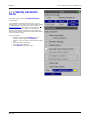
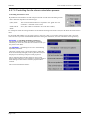
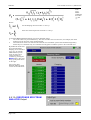
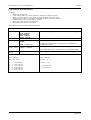
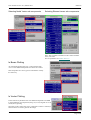
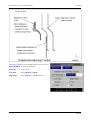
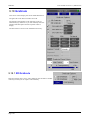
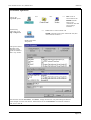
The top half of the menu provides ways to select the
items to be blanked and unblanked while the bottom half
is used to choose the type of item that is going to be
blanked / unblanked.
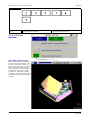
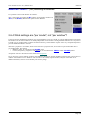
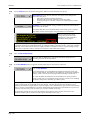
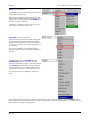
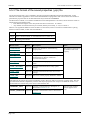
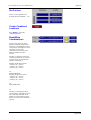
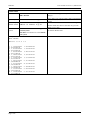
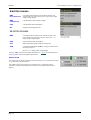
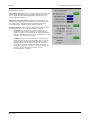
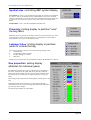
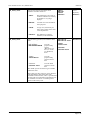
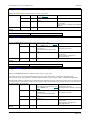
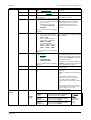
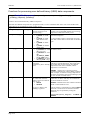
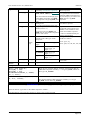
1 (NONE)
The image is never updated
automatically to show the effect of
blanking. You must redraw the image
(eg DR, SH, etc) to see the effect of
changes. This is not recommended
unless you have a very slow
connection to your display.
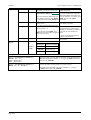
2 (MEDIUM)
Default behaviour. (Un-)Blanking
something does not cause the display
to update, but any subsequent
viewing operation (eg zoom, dynamic
view, etc) will result in the image
being updated to show the effect of
changes.
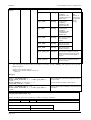
3
Immediate update. Every time you
(FREQUENT) (un-)blank something the display
will be redrawn immediately to show
the effect of the change. Very large
models on slow displays may become
cumbersome if this is used.
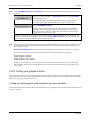
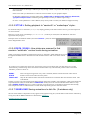
It is recommended that you keep the default UPDATE
LEVEL of 2, and use the UPDATE PLOT button
explicitly to see the effect of changes. (The "Quick Pick"
blanking option provides "instant" blanking, and is a
better way of achieving this behaviour.)
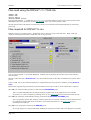
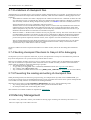
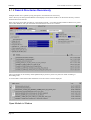
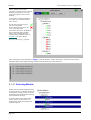
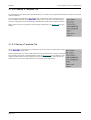
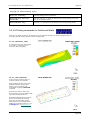
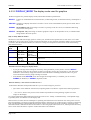
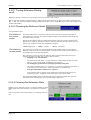
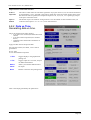
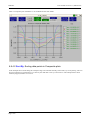
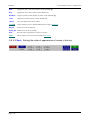
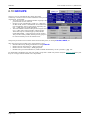
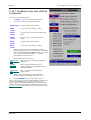
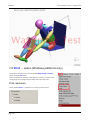
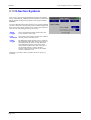
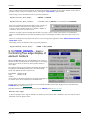
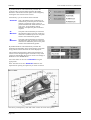
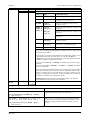
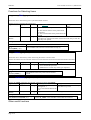
6.1.2 Entity Types
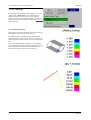
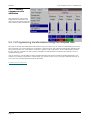
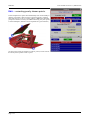
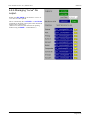
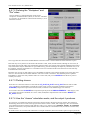
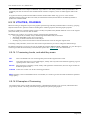
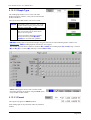
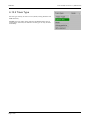
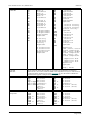
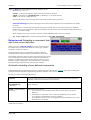
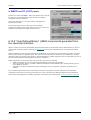
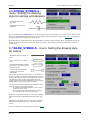
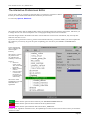
The bottom section lists the generic entity types that the model contains and this section controls the type of items that
are selected by the PICK and AREA and KEY IN options.
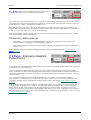
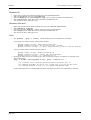
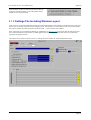
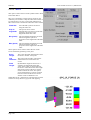
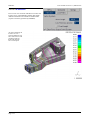
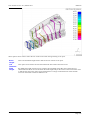
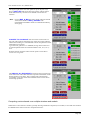
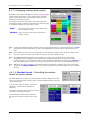
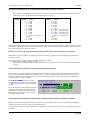
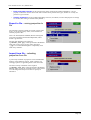
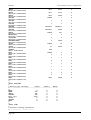
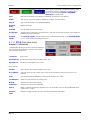
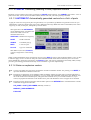
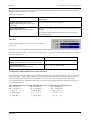
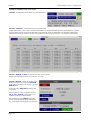
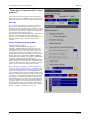
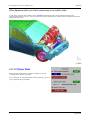
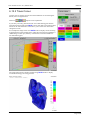
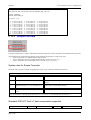
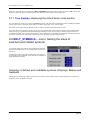
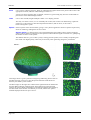
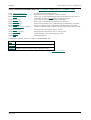
By default this section shows a list of all the PARTs that the model contains. The blanking status of an item can be
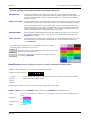
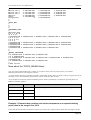
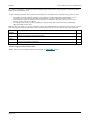
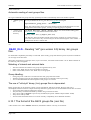
changed by clicking on its entry in the list. The list of items is colour coded as follows :
Page 6.8