1
4 - The Individual Components
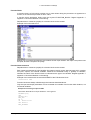
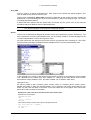
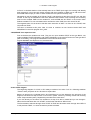
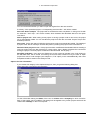
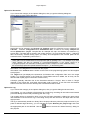
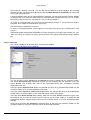
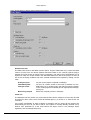
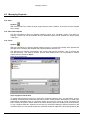
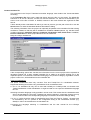
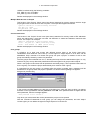
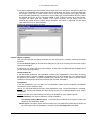
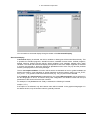
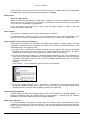
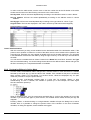
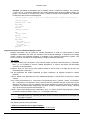
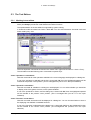
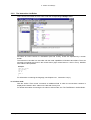
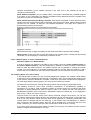
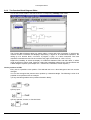
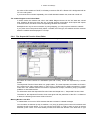
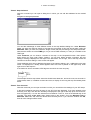
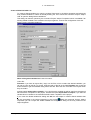
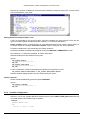
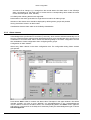
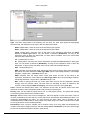
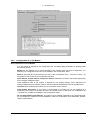
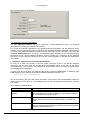
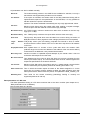
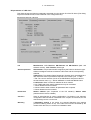
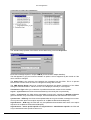
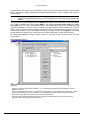
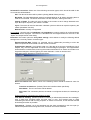
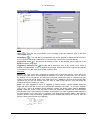
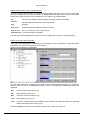
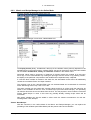
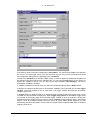
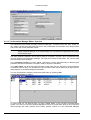
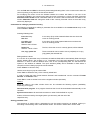
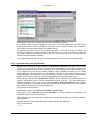
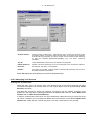
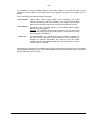
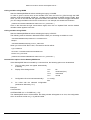
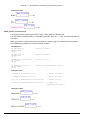
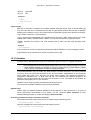
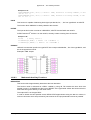
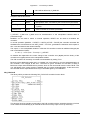
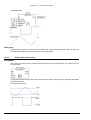
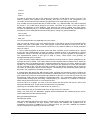
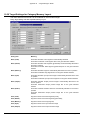
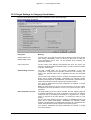
In the editor field Commands you define and/or edit the commands that are to constitute the newly
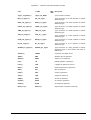
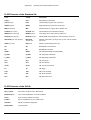
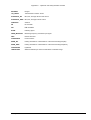
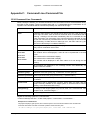
created or selected macro. All the commands of the CoDeSys batch mechanism and all keywords
which are valid for those are allowed. You can obtain a list by pressing the Help button. A new
command line is started by pressing <Ctrl><Enter>. The context menu with the common text editor
functions is obtained by pressing the right mouse button. Command components that belong
together can be grouped using quotation marks.
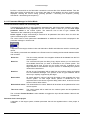
If you want to create further macros, perform steps 1-3 again, before you close the dialog by pressing
the OK-button.
If you want to delete a macro, select it in the macro list and press button <Del>.
If you want to rename a macro, select it in the macro list, insert a new name in the edit field 'Name'
and then press button Rename.
To edit an existing macro, select it in the macro list and edit the fields 'Menu' and/or 'Commands'. The
modifications will be saved when pressing the OK-button.
As soon as the dialog is closed by pressing the OK-button the actual description of all macros will be
saved in the project.
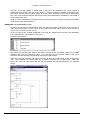
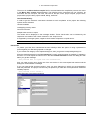
The macro menu entries in the 'Edit' 'Macros' menu are now displayed in the order in which they were
defined. The macros are not checked until a menu selection is made.
Macro libraries:
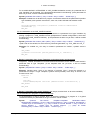
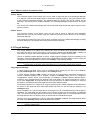
Macros can be saved in external macro libraries. These libraries can be included in other projects.
Creating a macro library containing the macros of the currently opened project:
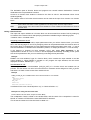
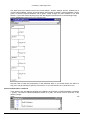
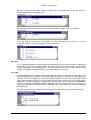
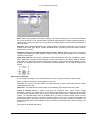
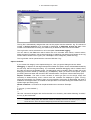
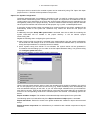
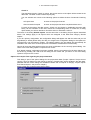
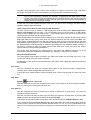
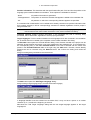
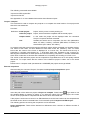
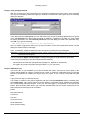
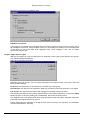
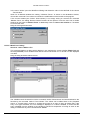
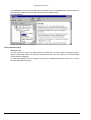
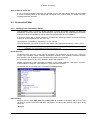
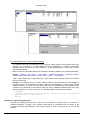
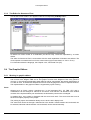
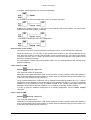
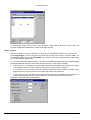
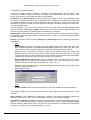
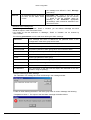
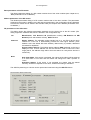
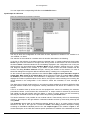
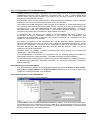
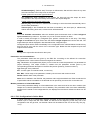
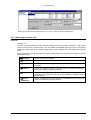
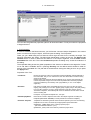
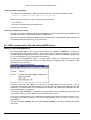
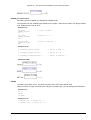
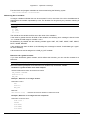
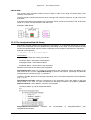
Press button Create. You get the dialog Merge project, where all available macros are listed.
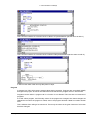
Select the desired entries and confirm with OK. The selection dialog will close and dialog Save
Macrolibrary will open. Insert here a name and path for the new library and press button Save.
The library will be created named as <library name>.mac and the dialog will be closed.
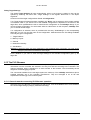
Including a macro library <library name>.mac in the currently opened project:
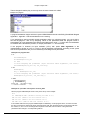
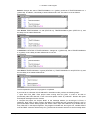
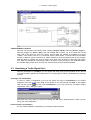
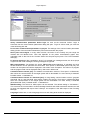
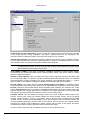
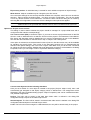
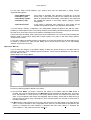
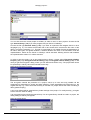
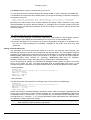
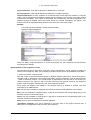
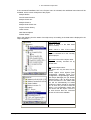
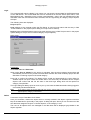
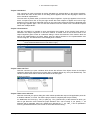
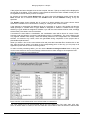
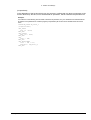
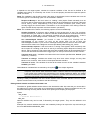
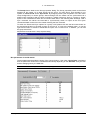
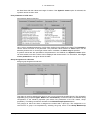
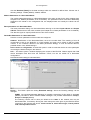
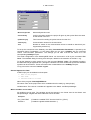
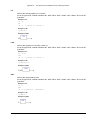
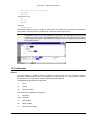
Press button Include. The dialog Open Macrolibrary will open, which shows files with extension
*.mac. Select the desired library and press button Open. The dialog will be closed and the library
will be added to the tree of the Macrolist.
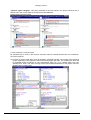
Hint: The macros of a project also can be exported ('Project' 'Export').
CoDeSys V2.3
4-21