1
5 - Editors in CoDeSys
5
Editors in CoDeSys
5.1
This is for all Editors...
Components of an Editor
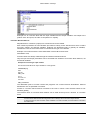
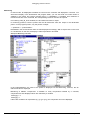
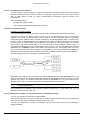
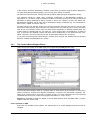
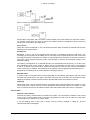
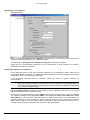
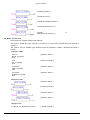
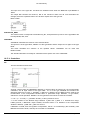
All editors for POUs (Program Organization Units) consist of a declaration part and a body. The body
can consist of other a text or a graphic editor; the declaration portion is always a text editor. Body and
declaration part are separated by a screen divider that can be dragged, as required, by clicking it with
the mouse and moving it up or down.
Print margins
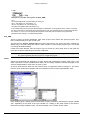
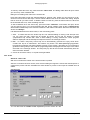
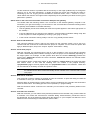
The vertical and horizontal margins that apply when the editor contents are printed, are shown by red
dashed lines if the 'Show print range' option in the project options in the dialog 'Workspace' was
selected. The properties of the printer that was entered apply, as well as the size of the print layout
selected in the 'File' 'Printer Setup' menu. If no printer setup or no print layout is entered, a default
configuration is used (Default.DFR and default printer). The horizontal margins are drawn as if the
options 'New page for each object' or 'New page for each sub-object' were selected in 'Documentation
settings'. The lowest margin is not displayed.
Note: An exact display of the print margins is only possible when a zoom factor of 100% is selected.
Comment
User comments must be enclosed in the special symbol sequences „(*" and „*)". Example: (*This is a
comment.*)
Comments are allowed in all text editors, at any location desired, that is in all declarations, the IL and
ST languages and in self-defined data types. If the Project is printed out using a template, the
comment that was entered during variable declaration appears in text-based program components
after each variable.
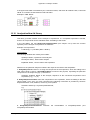
In the FBD and LD graphic editors, comments can be entered for each network. To do this, search for
the network on which you wish to comment and activate 'Insert' 'Comment'. In the Ladder Editor
additionally a comment for each particular contact and coil can be added, if the corresponding options
are activated in the menu 'Extras' 'Options'. In CFC there are special comment POUs which can be
placed at will.
In SFC, you can enter comments about a step in the dialog for editing step attributes.
Nested comments are also allowed if the appropriate option in the 'Project' 'Options' 'Build Options'
dialog is activated.
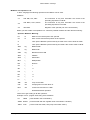
In Online mode, if you rest the mouse cursor for a short time on a variable, the type and if applicable
the address and comment of that variable are displayed in a tooltip.
Zoom to POU
Shortcut: <Alt>+<Enter>
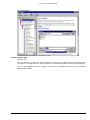
With this command a selected POU is loaded into its editor. The command is available in the context
menu (<F2>) or in the 'Extras' menu, if the cursor is positioned on the name of a POU in a text editor
or if the POU box is selected in a graphic editor.
If you are dealing with a POU from a library, then the library manager is called up, and the
corresponding POU is displayed.
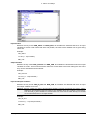
Open instance
This command corresponds to the 'Project' 'Open instance' command.
CoDeSys V2.3
5-1