1
Troubleshooting
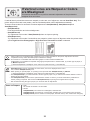
This section gives troubleshooting tips in case of problems.
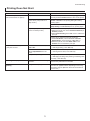
Paper Problems
Phenomenon
Cause
Corrective Action
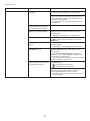
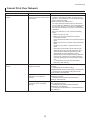
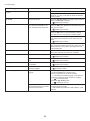
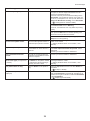
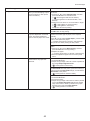
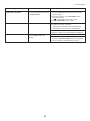
Roll paper cannot be inserted into
the paper feed slot
The roll paper is warped.
Straighten out curls and reload the roll.
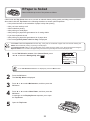
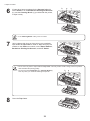
Paper is jammed by the paper feed Remove the jammed paper.
slot.
(→ , If Roll Paper Jams)
(→ , If a Sheet Jams)
After a roll was advanced, the
paper was manually pulled out
by force, closing the Paper Feed
Slot.
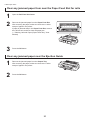
Remove the roll and open the paper feed slot.
(→ , Removing the Roll from the Printer)
Cannot load sheets
The paper source selection is
incorrect.
Press the Load button and select the paper source.
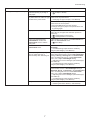
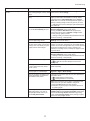
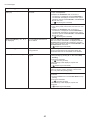
Paper is not cut straight
The paper is bent or curled at the
cut position.
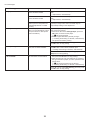
Straighten out any curling by the edges of the paper.
Paper rises by the ends of the cut
position before it is cut.
Reload the paper correctly.
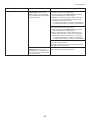
You are using paper that cannot be Specify Manual in Cutting Mode in the Control
cut with the Cutter Unit.
Panel menu and use scissors or a cutting tool to cut
the roll after printing.
(→"Specifying the Cutting Method for Rolls," User
Manual)
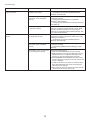
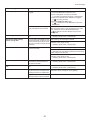
Paper is not cut
Cut Speed is not configured
correctly in the Control Panel
menu.
Change the Cut Speed setting in the Control Panel
menu.
(→ , Menu Map)
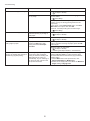
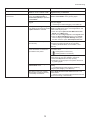
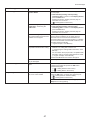
The printed document became
caught on a foreign object by
the Output Tray, which lifted the
document. The Cutter passed
under the paper.
Remove the foreign object by the Output Tray to
enable the printer to eject the printed document,
keeping it level.
In the printer driver, No or Print
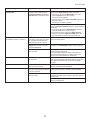
Specify Yes in Auto Cut in the printer driver.
Cut Guideline is specified in Auto
Cut.
In the Control Panel menu,
Cutting Mode is set to Eject or
Manual.
If the Cutting Mode is Eject, press the Cut button to
cut the paper.
If the Cutting Mode is Manual, cut rolls with scissors
or the like.
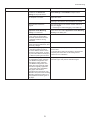
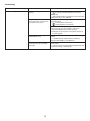
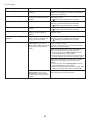
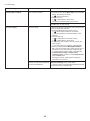
A depression is left on the leading
edge
Keeping a roll in the printer for a
long time without printing on it may
leave a depression on the leading
edge.
When printing quality is most important, we
recommend setting TrimEdge Reload to On or
Automatic so that the paper edge is automatically cut
before printing.
(→ , Menu Map)
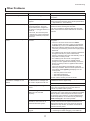
Roller marks are left across the
trailing edge of paper
The paper was removed without
pressing the OK button after
printing from the Front Paper
Feed Slot.
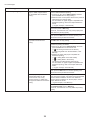
Following the instructions displayed, press the OK
button, and after removing the paper, press the OK
button again.
Rolls are advanced a specific
amount before cutting to prevent
problems with cutting and paper
ejection.
This operation is normal.
Margins are wide
2
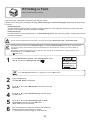
Wipe the rollers to clean them.
(→ , If Paper is Soiled)
(→"Cleaning the Paper Retainer," User Manual)