1
GroupWise Library provides a secure location for you to save your documents. If you need to share
a document with users who do not have access to GroupWise, you can save a copy of the document
outside of the library.
This section contains the following topics:
• Section 13.12.1, “Saving Items as Documents,” on page 331
• Section 13.12.2, “Saving Changes to a Document’s Contents,” on page 331
• Section 13.12.3, “Saving Documents Outside of the GroupWise Library,” on page 331
13.12.1 Saving Items as Documents
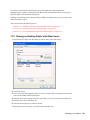
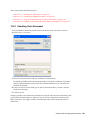
You can save any of the items in your Mailbox as a document in the library. Items are saved in
WordPerfect format, but with a .doc extension so that they can also be opened in Word. For more
information, see “Saving an Item to Disk or to a GroupWise Library” on page 196.
13.12.2 Saving Changes to a Document’s Contents
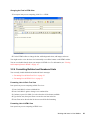
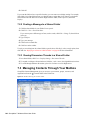
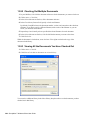
To save changes you have made to the contents of a document, use the Save feature in the
corresponding application.
The Save feature in your application functions differently depending on whether you are using an
integrated or a non-integrated application.
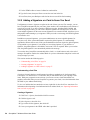
Saving Documents in Non-Integrated Applications
If you are using non-integrated applications (all Windows 3.1 applications and many Windows 95
applications), you can't save the document as a new version from the application. To create a new
version of the a document, you must create the new version in GroupWise before you open the
document in the application. To make sure your changes are saved in the library, don’t rename the
document when you save it from within the application.
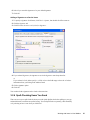
Saving Documents in Integrated Applications
If you are using an integrated application, GroupWise can integrate its document management
features with the application’s Save As feature. When you select Save As in the application, you
have the option of saving the document as a new version in GroupWise Library. In addition, you can
select the GroupWise folder you want to save the document in.
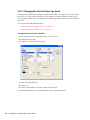
13.12.3 Saving Documents Outside of the GroupWise Library
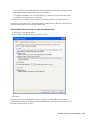
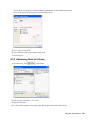
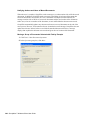
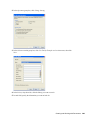
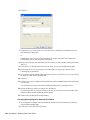
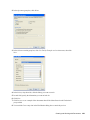
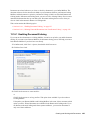
To share documents with users who do not have access to GroupWise, use Save As to make a copy
of a document outside of the Library. When you use Save As, any changes you make to the saved
document are not updated in the library.
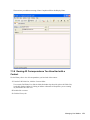
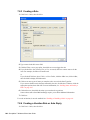
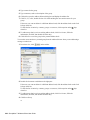
1 Click the document reference in your Mailbox.
Creating and Working with Documents 331
novdocx (ENU) 01 February 2006
13.12 Saving Documents