1
Troubleshooting Installation Issues
Problems with Installing Cisco Prime Network Services Controller
Step 2
Step 3
Step 4
From the UCS Director UI, delete the entry for the respective <pnsc-name> from Administration > Physical Account
> Multi Domain Managers.
Select the particular PNSC entry that you want to delete from the table and click Delete.
Power off the PNSC-VM from the vSphere Client and delete the VM.
Problems with Installing Cisco Prime Network Services Controller
This section includes symptoms, possible causes, and solutions for the following problems while you install
Cisco Prime Network Services Controller (PNSC).
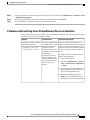
Symptom
Possible Causes
Verification and Solution
The PNSC installation workflow
fails with the following
error:java.net.UnknownHostException
:< hostname_of_the_server
>,selectedContext=< None >
This occurs when the hosts
are added to the VC via the
host names and the SNS
settings on the UCS
Director is incorrect. The
reachability to the host and
the PNSC OVA
deployment fails when
either the DNS server is
wrong, or when the DNS
server is not listed as the
first one in the UCS
Director.
You must verify that the DNS server IP
address is valid and the DNS server is listed
as the first. If not, change the order of the
DNS server in such a way, that the preferred
DNS server is always listed as the first in
the list.
To change the order or view the DNS IP
address, do the following:
1 Log into UCS Director.
2 navigate to Administration > Guided
Setup > Initial System Configuration
> Launch.
3 Skip all the steps until the DNS Server
appears. Edit the order of the DNS server
list or add the right DNS servers.
4 Skip the remaining steps and click
Submit. You can relaunch the PNSC
installation for a successful deployment.
Cisco Virtual Application Container Services Installation and Upgrade Guide, Release 5.2STV1.1
3