1
EXAMPLE: CREATING A MODEL OF AN OVERHEAD HOIST WITH ABAQUS/CAE
vector plots, animations, and X–Y plots. In addition, it allows you to create tabular reports of the output
data. All of these methods are discussed in this guide. For more information on any of the postprocessing
features discussed in this guide, consult Part V, “Viewing results,” of the ABAQUS/CAE User’s Manual.
For this example you will use the Visualization module to do some basic model checks and to display
the deformed shape of the frame.
When the job completes successfully, you are ready to view the results of the analysis with the
Visualization module. In the Model Tree, click mouse button 3 on the job named Frame and select
Results from the menu that appears to enter the Visualization module. ABAQUS/CAE opens the output
database created by the job and displays a fast plot of the model. A fast plot is a basic representation of
the undeformed model shape and is an indication that you have opened the desired file. Alternatively,
you can click Visualization in the Module list located under the toolbar, select File→Open, select
Frame.odb from the list of available output database files, and click OK.
Important: The fast plot does not display results and cannot be customized, for example,
to display element and node numbers. You must display the undeformed model shape to
customize the appearance of the model.
The title block at the bottom of the viewport indicates the following:
•
•
•
The description of the model (from the job description).
•
The date the output database was last modified.
The name of the output database (from the name of the analysis job).
The product name (ABAQUS/Standard or ABAQUS/Explicit) and version used to generate the
output database.
The state block at the bottom of the viewport indicates the following:
•
•
•
Which step is being displayed.
The increment within the step.
The step time.
The view orientation triad indicates the orientation of the model in the global coordinate system.
You can suppress the display of and customize the title block, state block, and view orientation triad
by selecting Viewport→Viewport Annotation Options from the main menu bar (for example, many
of the figures in this manual do not include the title block).
Displaying and customizing an undeformed shape plot
You will now display the undeformed model shape and use the plot options to enable the display of
node and element numbering in the plot.
From the main menu bar, select Plot→Undeformed Shape; or use the
tool in the
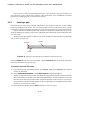
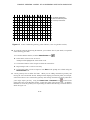
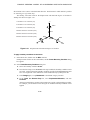
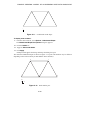
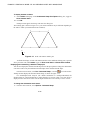
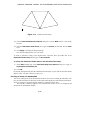
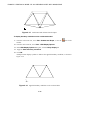
toolbox. ABAQUS/CAE displays the undeformed model shape, as shown in Figure 2–11.
2–32