1
A tutorial: Creating and analyzing a simple model
• Completed when the analysis is complete, and the output has been written to the output database.
• Aborted if ABAQUS/CAE finds a problem with the input file or the analysis and aborts the
analysis. In addition, ABAQUS/CAE reports the problem in the message area.
9. When the job completes successfully, you are ready to view the results of the analysis with the
Visualization module. From the buttons on the right edge of the Job Manager, click Results.
ABAQUS/CAE loads the Visualization module, opens the output database created by the job, and
displays a representation of the model.
Note the following key points:
• You use the Job module to create jobs.
• You use the Job Manager to submit jobs and to monitor the status of a job.
2.12 Viewing the results of your analysis
You use the Visualization module to read the output database that ABAQUS/CAE generated during the
analysis and to view the results of the analysis. Because you named the job Deform when you created the
job, ABAQUS/CAE names the output database Deform.odb.
When you open an output database, ABAQUS/CAE immediately displays a fast representation of the
model that is similar to an undeformed shape plot. For the tutorial you will also view an undeformed,
deformed, and contour plot of the loaded cantilever beam.
To view the results of your analysis:
1. After you click Results in the Job module’s Job Manager, ABAQUS/CAE loads the Visualization
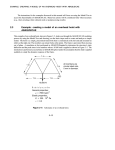
module, opens Deform.odb, and displays a fast plot of the model, as shown in Figure 2−12.
Figure 2−12 Fast plot of model.
2−27