1
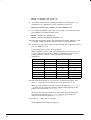
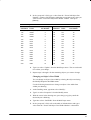
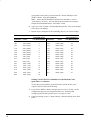
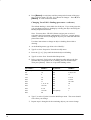
Refer to the following table to choose the VersaCAD pen number in
order to get the printed colors you want.
If you want this color
plotted or printed ...
...choose this
Pen Number...
If you want this color
plotted or printed ...
...choose this
Pen Number...
Black
1
Light Brown
17
Red
2
Dark Red
18
Green
3
Dark Green
19
Yellow
4
Dark Yellow
20
Blue
5
Dark Blue
21
Magenta
6
Dark Magenta
22
Cyan
7
Dark Cyan
23
Orange
8
Dark Orange
24
Brown
9
Dark Brown
25
Light Red
10
Dark Gray
26
Light Green
11
Medium Dark Gray
27
Light Yellow
12
Medium Gray
28
Light Blue
13
Medium Light Gray
29
Light Magenta
14
Light Gray
30
Light Cyan
15
White
31
Light Orange
16
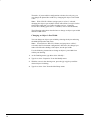
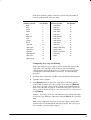
Configuring for Long-Axis Plotting
Before generating a long-axis plot, you must change the values in the
“right limit” and “top limit” fields of VersaCAD’s Environment
configuration to reflect the desired x-axis width of your plot and the
y-axis height of the loaded media, respectively. Use the following
procedure:
1. At VersaCAD’s main menu, type E to select the Environment program.
2. Type O to select “Output.”
3. Press [Return] until you get to the “right limit” field, then type the
x-axis width (in inches) you want your plot to be and press [Return].
Then in the “top limit” field, type the y-height of the loaded media (in
inches, using the table on page 11–6 of the HP DesignJet 750C Plotter
User’s Guide or the HP DesignJet 750C Plus Plotter User’s Guide) and
press [Return].
Example: If you have an E-size roll loaded and your desired plot width
is 75 inches, type 75 in the “right limit” field and 35.6 in the “top limit”
field.
Note: In the “right limit” field, you could type a higher number than
your desired x-axis width without affecting your plot, but if you type a
lower number, your plot will be clipped.
21