1
Chapter 5: Edit a Program
I/O Configuration
1
2
3
D
5
6
7
8
9
1
11
2
13
4
A
B
C
D
5-2
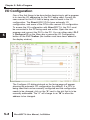
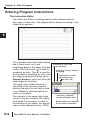
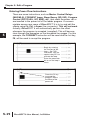
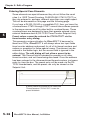
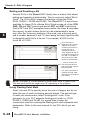
One of the first things to be done before beginning to edit a program
is to view the I/O addressing for the PLC being used. Consult the
user manual for the PLC that is being used to assist in the I/O
configuration. The DirectLOGIC PLCs have automatic I/O
configuration, and some of the CPUs offer manual I/O configuration.
To access the I/O configuration with DirectSOFT 6, the PLC must
be connected to the PC being used and online. Open the new
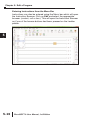
program and connect the PLC to the PC. You can either select PLC
> Configure I/O on the Menu bar or press the I/O Configuration
button on the PLC Toolbar (the toolbar must have been added to
the display window).
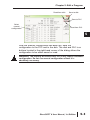
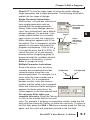
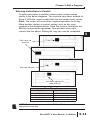
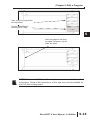
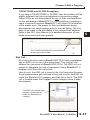
The Configure I/O dialog pictured on the facing page will appear
showing the automatic I/O configuration (by default). If a CPU is
being used that can be manually configured and the configuration
needs to be changed, click on the “A” next to the slot that is to be
manually addressed. The “A” will change to an “M” to allow the
address to be changed.
DirectSOFT 6 User Manual, 1st Edition