1
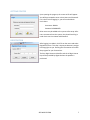
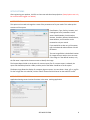
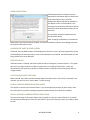
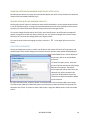
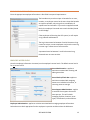
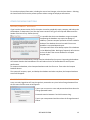
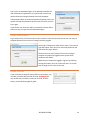
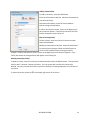
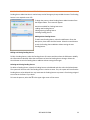
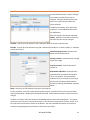
Adding a New Facility To Add a new facility, select the Add button. Enter the information as desired. Select the Save button to save the new Facility. Select the Cancel button to exit the Facility addition without saving the new Facility. In either case the main screen, shown at the beginning of this section will appear. If the Facility was saved, the new Facility will appear on the Facility list. Edit an Existing Facility To Edit a Facility, select the Facility of interest and then select the Edit button. Modify the information as desired. Select the Save button to save the Facility changes. Select the Cancel button to exit the Facility addition without saving the Facility changes. In either case the main screen, shown at the beginning of this section will appear. If the Facility was saved, the changed Facility will appear on the Facility list. Deleting an Existing Facility To delete a Facility, select the Facility to be deleted and then select the Delete button. The system will check to see if a location is tied to the Facility. If so, the system will not allow the Facility to be deleted. You may inactivate the Facility to prevent a location from being assigned to it in the future if you desire. To leave the process, select the in the upper right corner of the screen. ATS BASIC EDITION 21