1
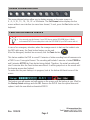
Screen Division Buttons
The screen division buttons allow you to display cameras on the main screen in a
4-, 6-, 9-,10-, 13-, 16-, 25-, 32- or 64-division. The Full Screen button displays the live
screen without user interface (no menu bars shown). To exit, press the Esc button on the
keyboard.
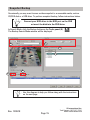
Panic Button Record Feature
You can only use this feature if your DVR has an optical (CD-ROM) drive. A blank
unformatted DVD-R must always be inside the DVD-ROM (if your DVR comes with it).
In case of an emergency situation, when the manager wants to back up the incident onto
the DVD right away, the Panic button feature can be used.
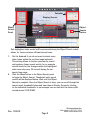
After the emergency incident has occurred, click the Panic button.
This feature enables the DVR to record 10 minutes of video recording from all cameras onto
a DVD-R in an i3 encrypted format. The recording will include 5 minutes of video PRIOR to
and 5 minutes AFTER the Panic button being clicked. Therefore, the actual recording will
start 5 minutes after the Panic button was clicked. It will be grayed out on the screen until
the burning process has finished.
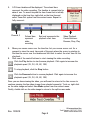
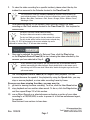
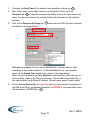
To make sure the panic backup is in progress, look at the bottom left-hand corner of the
screen.
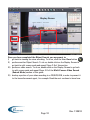
The backup icon will appear and will remain on the screen until the backup is over. Wait for
the Backup Finish message and click OK. Remove the DVD-R from the optical drive and
replace it with the new blank unformatted DVD-R.
Rev. 130618
Page 3
i3 International Inc.
Tech Support: 1.877.877.7241
www.i3international.com