1
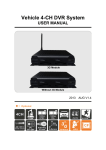
720P 4CH Vehicle Mobile DVR 2015 AUG V1.0 720P 4CH Mobile DVR User Manual Safety Precautions Take and review some testing video initially to make sure the images were recorded correctly. Please note that manufacturer, its subsidiaries and affiliates, and its distributors are not liable for consequential damages arising from any malfunction of main device accessory, including memory device that results in the failure of an image to be recorded or to be recorded in a way that is machine readable. Before using the product, please ensure that you read the safety precautions described below. Always ensure that the product is used correctly. • Please keep device away from children. • Use only recommended power sources. • Do not attempt to disassemble, alter or apply heat to the product. • Avoid dropping or subjecting the product to severe impacts. • To avoid the risk of injury, do not touch the interior of the product if it has been dropped or otherwise damaged. • Stop using the product immediately if it emits smoke, a strange smell, or otherwise behaves abnormally. • Do not use organic solvents such as alcohol, benzene, or thinner to clean the product. • Do not let the product come into contact with water (e.g. sea water) or other liquids. • Do not allow liquids or foreign objects to enter the VVR. • Do not place the VVR near or in direct flame. • Do not handle the power cord with wet hands. • Do not use the equipment in a manner that exceeds the rated capacity of the electrical outlet or wiring accessories. Do not use if the power cord or plug are damaged, or not fully plugged into the outlet. • Do not allow direct or metal objects (such as pins or keys) to contact the terminals or plug. • Avoid using, placing or storing the product in the humid or dusty areas. i 720P 4CH Mobile DVR User Manual Before using 3G products, please ensure that you read the safety notifications described below. • Company and user shall not modify certified low power radio frequency device the frequency, increase the power and change the characteristics and functions without permit. • Use low power radio frequency device shall not affect flight safety and interfere with legal communications; when there is interference happened should be immediately suspended, and improve without interfering may continue to use. • Legal communication means operation of radio communication in accordance with the provisions of the Telecommunications Act Low-power radio frequency device must endure the interference of legal communications, industrial, scientific and medical radiation wave equipment. ii 720P 4CH Mobile DVR User Manual Index A. Features ....................................................................................................................... 1 B. Specification ................................................................................................................ 2 C. Accessories .................................................................................................................. 3 D. Product Exterior ........................................................................................................... 4 E. Power On / Power Off ................................................................................................. 6 F. IR Remote Controller .................................................................................................. 7 G. System Interface and Operation ................................................................................ 8 H. CARBOX Player on PC Site ........................................................................................ 12 I. Format/Restore HDD ................................................................................................ 20 J. 3G Internet Setting .................................................................................................... 25 K. 3G Client Remote Monitoring .................................................................................. 29 L. Capacity Evaluation of Continuous Recording Storage Device ............................. 46 iii 720P 4CH Mobile DVR User Manual A. Features 1. Support 4CH recording cameras at the same time to record driving images completely. 2. Wide range of power input, suitable for any kinds of vehicles. 3. Auto recording after power supplied. 4. Provide Video output for playing-back mode and operating in mainframe. 5. x4 I/O alarm input, x1 Audio input and x1 Audio output. 6. Built-in G-sensor , automatically detect crush, trig force recording. 7. Built-in WIFI and 3G network, different selection of connecting. 8. H.264 real time compression chip, Higher compression ratio and keep clear resolution. 9. Recording format: 720p, used for different demand. 10. Complete Video Record List. Overall quick search event log. 11. Completely record driving video and sound to make sure attribution of responsibility when accident occurred. 12. Provide AVI convert function to users playback on PC. 13. Power management function, Extended record after power off. 14. G-Mouse optional, completely record your driving position and speed. 15. 3G module optional, control driving situation of vehicles anytime. 1 720P 4CH Mobile DVR User Manual B. Specification Recording Frame 720p/VGA@30FPS/CH 960H/CIF@30FPS/CH Display Mode 1CH/4CH Simplex Mode Record/Playback 1280X720 /640X480 Display 960X582 /360X240 Resolution 1280X720 /640X480 Recording 960X582 /360X240 HDD 2.5”SATA HDD Removable Case, Max to 1TB Backup Device USB 2.0 Flash Driver, Removable HDD Playback Mode Time/Date,Events Full Screen Yes LED Indicator 4 LED (LAN / REC / GPS / Power) Signal Loss Detector Yes Buzzer Alarm Output Yes RS485 Yes SD Yes GPS Yes G-SENSOR Yes 3G Yes WiFi Yes IR Yes Watchdog Built-in Super capacitor Power Supply Stop, Automatically return to recording mode when power back. Yes (1) DC 8V~32V (2)ACC Extended Recording by setting software. Dimension 250mmX174.8mmX69.5mm Operate temperature -20℃~65℃ Weight 1.85kg(With bracket and HDD ) *Version updating is not going to inform, please check the on-going updating information 2 720P 4CH Mobile DVR User Manual C. Accessories This product contains accessories as below: Standard: Main Device / Power Cable 6P+5A / ALARM Cable / IR Extension Cord /16P Female-MINIx2 / IR Remote Controller /Network Cable / Software Disc / RS-485 Cable(2 pin) Optional 3G Module / WiFi Antenna / G-Mouse 3 720P 4CH Mobile DVR User Manual D. Product Exterior Front Panel HDD Slot Lock Power Light SIM Card Slot Recording Light Network Light GPS Light SD Card Slot HDD Slot USB Slot Infrared Receiver 4 720P 4CH Mobile DVR User Manual REAR PANEL Hollow Connection: 1 Set Video Output 1 Set Audio Output 1 Set Audio Input 4 Set Alarm Input RS-485 Network Slot Audio Input Video Cameras Connect Port (1-4 CH) Output GND Power Port WiFi Antenna Port Audio Input 3G Antenna Port GPS Port Power Port 1. 2. 3. 4. 5. 6. DC+12V Output Signal & DC grounding Signal & DC grounding DC8~36V IN Vehicle Power(+) ACC Control GNDP Vehicle Power(-) 5 720P 4CH Mobile DVR User Manual E. Power On / Power Off (1) Power On Put HDD into HDD slot and closet HDD slot lock, then turn on the power and it will take approximately 30 seconds. When lights start flashing as the recording is in progress. (2) Power Off Turn off the power; please wait for 10 seconds until super capacitor without electric. Then take the HDD out and playback the recording files in computer. (3) Light Indicator Power Light(Green Light): Light Off,means no power/power off. Light On,means power supply normally. GPS Light(Orange Light): Light Off,means GPS is not ready. Light On,means GPS is locating position. Network Light(Blue Light) : Light Off,means network disconnected. Light On,means network connected. Recording Light(Red Light): Light Off,means non-recording. Light Flashing,means recording. ※ When Light Fast Flash,means Force recording is caused by manual or G-Sensor (Remark: While using playback function in DVR, it cannot take live recording at the same time.) 6 720P 4CH Mobile DVR User Manual F. IR Remote Controller Vehicle DVR can be operated through two methods: IR remote controller and PC software application. Through IR Remote controller instruction Buttons Instruction No. Function Description No. Function Description 1 1CH Screen Display 7 Confirm Button 2 Force Recording Button 8 Backward(Not Working) 3 4CH Screen Display 9 Forward 4 Mute 10 Playback、Play 5 Menu 11 Pause 6 Arrow 12 Stop、Left Remote control inspection Check the battery’s positive and negative polarity. Check the battery if run out. Check the sensor of remote control if be obscured. Check if there are fluorescent lamps are used nearby. 7 720P 4CH Mobile DVR User Manual G. System Interface and Operation Live Monitoring Mode Display Live Monitoring Mode4 Split Display (1~4Ch) (1) Display Description: • Press Ch1~Ch4 button or select on menu for single display. • Press quad split screen button for 4Ch display. • Press menu button to enter menu option. • Press play button to enter playback mode. (2) Icon Description: • : Recording • : GPS Connecting • : Voice Recording On • : Event Recording On • : 3G Connection On • : Alarm Trigged 8 720P 4CH Mobile DVR User Manual OSD Menu Operation and Parameters Setup Description NTSC Recording Recording Setting Frame PAL Resolution Normal Video Setting 720P 5-30 fps VGA 5-30 fps 720P 5-25 fps VGA 5-25 fps Better High Select 1~4CH to adjust Bright, Contrast and Color The time setting will be automatically calibrated by Time Setting GPS signal. If no GPS signal, time and date can be set manually. GPS Setting Plate Number Setting Select show speed and speed unit setting on live view display or Not. Input range:A~Z and 0~9 1. Setup channel mode when system starts. Working Mode 2. Select extensional time after ACC Off 3. Sound recording ON/OFF Alarm Setting System Protection 3G Network Setup the mode after alarm trigged. 1. Low voltage protection(trigged at ACC mode) 2. Notice of HDD protecting. 3G function ON/OFF,show setting information at present(Optional) Once the function is activated, when the car collision G-Sensor Setting happened, 『 Force Recording 』 mode will be automatically triggered, to prevent complete recording event not be overwritten. Data Backup Restore Default Format HDD Select necessary files to backup. After restore default setting, machine will be restarted and cleaned original setting. Recording data will also be formatted at same time Save the firmware update program into USB device Firmware Update and use USB device to update firmware. When update firmware please keep power supply. It will restart automatically after finishing update. 9 720P 4CH Mobile DVR User Manual Playback Mode Live screen on the device or on PC On the Device (1) Click play button on the remote control during live monitoring mode, to enter playback page. (2) To select search type then click enter button, to enter playback list (3) To select the playback file, then click enter button to enter the playback video file. Playback on PC: To enter playback by unplug and read HDD (1) To read the HDD with saving data on PC, then run the player software CarBox2.exe. (2) Click “Playback” ,to open playlist menu. (3) Select HDD, the video files will be shown in the playlist, Click the video file to play. 10 720P 4CH Mobile DVR User Manual Playback List Display (Remark:If the playback list cannot be read in Win7 system. Solution: click right button and execute CARBOX as Administer identity. ) 11 720P 4CH Mobile DVR User Manual H. CARBOX Player on PC Site Execute player software CarBox2.exe . ★Caution: It needs to install DirectX 9.0 or above before running CarBox2 software. Operating Instruction Control Interface Playback Date Selection Google Map GPS Direction GPS Latitude & Longitude Speed G-Sensor Volume Play Bar Play Speed (1). Control Interface Description Snapshot: Capture the footage screen. Configuration Disk Backup: Select backup location to save files. Playback: Select files in HDD or PC to playback. Tool, HDD format, language setting. 12 720P 4CH Mobile DVR User Manual Previous File: Play previous video. Previous Frame: Backwind previous frame in Pause situation. Save as SD files, Video backwind play. Pause: Pause playing video Stop: Stop playing video Play: Play pause video Next Frame: Forward next frame in pause situation. Next file: Play next video Snapshot Screen shoot: Click the icon, to capture the footage screen. The Image will be save as .bmp file format. Player will show the backup folder automatically. The default directory is the Snapshot folder. (Under the Player installation folder). Configuration : Setup the HDD Setting. Before execute this function, please insert the HDD device into your computer. When finish all setting and click 『Save』, all the setting will save to the HDD device. When you insert the HDD device into your DVR, the DVR will read the setting and follow the setting to start recording. Remark: Using SATA convert USB Cable Device to read HDD on PC. 13 720P 4CH Mobile DVR User Manual Resolution 720P and VGA Video Quality Choose the resolution: High / Normal / Low Video Frame Rate Set the fps from 5 to 30 Car information Car License, Driver (For Company car, Taxi, or fleet) UI Mode Setup Player Size. Encrypt the HDD device to prevent others who not permitted to access the HDD device. String length: Password 15 character. After setting the password, all actions, like Playback footage, setting, format HDD device, need the password. ★ Note: Upper character and lower is different. Time Zone GMT setting, to adjust the time zone. Unit of Speed Set the speed unit Km/hr Mile/hr Knot G-sensor sensitivity setting mode G-sensor Sensitivity Sensitivity setting: (Min/Low/Normal/High/Max) Parking Mode Setup Extend Recording Time after Engine off Parking Frame Rate Setup Extend Recording Frame after Engine off 14 720P 4CH Mobile DVR User Manual Backup : Backup folder: Choose the folder that backup file will save. Backup the footage on the HDD device to your computer for data backup. Select icon to start the backup function as the following : Step1.Choose the Local Disk, Removable Storage or Backup File. Step2.Choose the file you want to backup on the HDD device. 15 720P 4CH Mobile DVR User Manual Step3.Choose backup file format. Backup Format: ● SD Format Save as .sd file. ● AVI Format Save as .avi file. Note:*.sd format file contain image/ speed/ location and G-SENSOR data. *.avi format only can backup the video and audio. We recommend you backup as *.sd format. Step4.You also can choose a period to backup the footage during the period 16 720P 4CH Mobile DVR User Manual Step5.Choose the backup folder. Step6.Start to backup. Playback Playback the footage: Choose the file in HDD device or in the computer to playback. 1. Choose the Local Disk, Removable Storage or Backup File 2. Choose the file Format Format: Format the storage and Restore the storage format to windows format. Language setting, Firmware version. For Format and restore storage, please reference the next item. 17 720P 4CH Mobile DVR User Manual . (2). GPS Latitude & Longitude Coordinates Location Latitude & Longitude GPS Latitude & Longitude Coordinates:Display driving location and latitude & longitude with G-mouse ( Optional) (3). G-SENSOR G-SENSOR: X: The G-force from left & right of the car. Y: The G-force from front & back of the car. Z: The G-force from upside & downside of the car 18 720P 4CH Mobile DVR User Manual (4). Volume Control Volume BAR: Click the left button of mouse control to adjust the volume degree. (5). Video Search Video Searching:You can use the mouse to drag the bar to search the video quickly. (6). Play Speed: Play Speed: Support 2x, 4x 8x fast forwarding and -1/2x, -1/4x -1/8x slow play mode. (7). Playback Date Selection Date Search Quick switching by minutes Selecting by Hours/Minutes (24-hours) 19 720P 4CH Mobile DVR I. User Manual Format/Restore HDD Format HDD Q: When should you format the HDD? A: For brand new HDD or an used HDD which is used in other equipment before, it should be formatted before using.。 ※ Before format please backup the important data in your HDD. Format HDD by Device or PC. (1) Format by Device Step 1: Use remote controller to enter DVR menu and choose Format Disk. Step 2: Select “Yes” and Click “Enter’’ to start formatting. Step 3: When the screen back to LIVE mode, the formatting is completed. (2) Format On PC Step 1: Connect the storage device / hard disk to PC. Execute the CarBox2.exe software 20 720P 4CH Mobile DVR Step 2: Click User Manual icon to enter format tool menu. Step 3: Click “Format” button. Step 4: Click “ Yes” (After format, re-plug the storage device, then you can set up related parameters and save. After setting, Install the HDD into the DVR and it can start to work.) 21 720P 4CH Mobile DVR User Manual Restore HDD Q. When you need to restore the Storage? A. If the storage device(HDD) will be used in other purpose., please back-up record footages to PC firstly and then restore it. ※Before Restore please backup the important data in your HDD. (1) Restore the Storage on PC Player Step 1: Connect the storage device (hard disk) to PC. Execute CarBox.exe Step 2: Click icon, choose the Storage, then press 『Restore』 Step 3: The following window will pop up, Click 『Yes』to start restore the Storage. 22 720P 4CH Mobile DVR User Manual Step4.Now system will pop up the window to proceed the format procedure, please choose 『Quick format』,then click 『Start』. Step5. Click 「Yes」 to start formatting the Storage Step6. Click "OK" to finish restore HDD device. 23 720P 4CH Mobile DVR User Manual Step7.After finished, press 『OK』。Then the Storage format is normal windows format. 24 720P 4CH Mobile DVR User Manual J. 3G Internet Setting (1) SIM Card Setting During using SIM card, the protected pin code must be turned off, please refer to the following steps. (For example like HUWEI CHT-E180 model, 3.5G USB wireless adaptor) Step1. Plug in SIM card into 3G dongle then connect 3G dongle to PC, the system will automatically execute Mobile Partner Step2. Once enter the system, go to Tool-> PIN operations-> Disable PIN Verification 25 720P 4CH Mobile DVR User Manual Step3. Input the correct PIN numbers, Default Setting: 0000 Step4. After input PIN numbers, it will have a pop-up message to complete disable PIN numbers Step5. After complete these steps, reinsert SIM card to the socket on the device to activate. (2) 3G-Network Setting Setup the relative parameter of 3G-Network. Step1. Please double click and open the setting page as below: Step2. Insert USB to PC and select USB flash driver to enter relative 26 720P 4CH Mobile DVR User Manual parameter. Config tool Removable Storage Source of Device UserName Default Setting Password Default Setting Server Address Server IP Address Default Server Port Sever recommend Port is changing 13579, the Not original setting). 3G APN, generally preset to be Taiwan Telecommunication providers, if in APN other area, Please check local Telecommunication providers offered APN setting name.) Dial-Up Number: 3G Dial-Up Number, generally preset to be *99#, if in other Dial-Up Number area, Please check local Telecommunication providers offered 3G Dial-Up SETTING Numbers. 3G On/Off: To choice whether star the 3G On/Off 3G tele-connecting function or not. “Pick” (V) mean “Star” commonly, 27 720P 4CH Mobile DVR User Manual if not willing to use tele-connecting function, please directly neglect it. Step3. After finishing all the input information, click “OK” to save the information into USB drive. Click USB drive to check if the file already exists. (File name is net3g.ncf) Step 4. Insert USB drive into DVR USB port then restart; after restart, if the parameter is successfully configured, the system will automatically restart in 10 seconds. Step 5. After the system restart, please go into 3G Network in the main menu to check if the parameter is successfully configured. (Once the configuration is done, it will show the information on the screen) 28 720P 4CH Mobile DVR User Manual K. 3G Client Remote Monitoring (1) Login Execute 3GClientApp.exe and login Enter the username and password and then press “Login” button to login screen. Note: To perform this software will require DirectX 9.0 or more. User Name User Account Name Password User Account Password CenterServer Address 3G Server IP Address (Default: 202.39.134.134) CenterServer TcpPort Server TCP Port (Default: 24680) CenterServer UdpPort Server UDP Port (Default: 24681) 29 720P 4CH Mobile DVR User Manual (2) Live View Display Equipments list display all the connecting equipments. Be able to play real-time image form all channels. Lift click mouse to open equipment channel than click on channel to view the real-time image. Device List 30 720P 4CH Mobile DVR User Manual Live View Split screen display mode button Single Display Quad Display 16 disvisions 9 divisions Display Display Muti-divisions display,25/36/49/64 Live View-Single Channel Display 31 720P 4CH Mobile DVR User Manual Live View- Quad Channels Display Live View Function buttons Recording Signle snapshot as AVI file Snapshot Snapshot Auto-flip Auto flip to next page Stop auto-flip Stop auto-flip to next page Monitoring Status Go to previous page Go to next page Save the current live viewing channels to be able to retrieve it next time Manually go to previous page Manually go to next page 32 720P 4CH Mobile DVR 1. User Manual Recording: To record the selected channel, the red recording signal will show up at the bottom of the screen. 2. Snaptshot: To take the snapshot of the selected channel, it will automatically go to the saving directory. 3. Start Auto-flip: Once auto-flip is triggered, it will go to next page in a period of time. 4. Stop Auto-flip: Auto-flip function will stop.. Auto-flip time setting, please go to Setting->Page 1->Auto flip period Page-Once the time is up, it will automatically go to next page 33 720P 4CH Mobile DVR 5. User Manual Monitoring Status: To save the current live channels, input the status name then save it; next time when you log into 3G client software, you could click the saved status name to watch. 6. Manually select page: Manually select the previous or next page 34 720P 4CH Mobile DVR User Manual Live View Interface To select different display mode: Event/Dev List/Map to show different status. 1. Event 2. Dev List 3. Map (3) Electronic Map ※G-Mouse must equiped with Device to have GPS function to provide 35 720P 4CH Mobile DVR User Manual positioning information Once positioning is done, you could use the mouse to click the device for current position. Device Positioning Without GPS function. With GPS function Device Located. Electronic Map Select the positioned device on the list, then it will show its position on the map. 36 720P 4CH Mobile DVR User Manual Live View Interface To select different display mode: Event/Dev List/Map to show different status. 1. Event 2. Dev List 3. Map 37 720P 4CH Mobile DVR User Manual 38 720P 4CH Mobile DVR 4. User Manual Live View (4) Route ※G-Mouse must equiped with Device to have GPS function to provide positioning information To display the positioned device at the track, you can notice the traveling route of the vehicle. Device Positioning Information Select the positioned device on the list, then it will show its current position and traveling route on the map. 39 720P 4CH Mobile DVR User Manual Tracking Route Search Choose Date and Car Name/ID to search the data 40 720P 4CH Mobile DVR User Manual Remote Live View Message Interface Mode: Event/Dev List/Map/Live View 1. Event 2. Dev List 3. Map 41 720P 4CH Mobile DVR 4. User Manual Live View (5) Setting Page Page 1 Setting the FPS, recording function, auto turn over page, and language. 1. Video Buffer Setting Real-Time-> Higher frame rate Smooth-> Higher video resolution 42 720P 4CH Mobile DVR 2. User Manual Recording Setting Record Path, Record Duration (Seconds), and Disk Free Space(MB) are the relative options. 3. Snapshot Set the path after snapshot 4. Auto-Change Duration (Seconds) Set the duration in seconds of auto-change page. 5. Language Setup 3G Client Language display. Page 2 Setting 3G function, recording, and e-mail. 43 720P 4CH Mobile DVR 1. User Manual 3G Setting Unit of Speed, Auto Disconnect Time, Read Device functions are available. • Speed Unit: Speed unit of E-map and tracking route display • Auto Disconnect Time: During live video playing, once it is set, the video image will be Close at the setup time. • Read Device: To read all the devices or all available online devices. (If too many devices in this server, we recommend to select “only read online device”to have better PC performance.) • Event Record Setting To set the video recording channel and duration, once the alarm is triggered. (Remark: Once this function is set, all of online device video will be recorded; hence, if there are too many 44 720P 4CH Mobile DVR User Manual devices in this server, we recommend to close this functio to have better PC performance.) 1. E-mail setting When the alarm is triggered, the server will send a e-mail to the specific account, please refer to the following figure. • SMTP Servr:SMTP Server Address • SMTP Port:SMTP Port • Email Account • Email Password • Email Address • Attach Video File when Email • (Remark: E-mail setting: Once the alarm is triggered, the e-mail will be sent to all of online device; hence, if there are too many devices in this server, we recommend to close this functio to occupy unnecessarily the space of the e-mail account.) SMTP List Table 45 720P 4CH Mobile DVR User Manual L. Capacity Evaluation of Continuous Recording Storage Device Assumption of the minimum record time for Mobile DVR: 8Ch/15FPS , Statics Recording and different capacity of Hard Disk. The following recording table is evaluated by 500GB and 1TB. Data for reference, real recording time will be affected by different recording environment. 46 More product information Please visit VACRON web-site http://vvr.vacron.com.tw Made in Taiwan