1
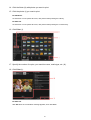
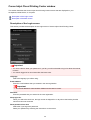
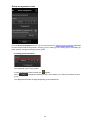
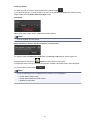
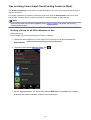
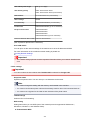
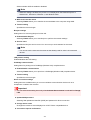
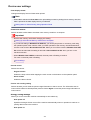
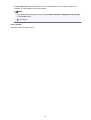
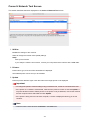
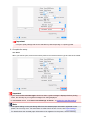
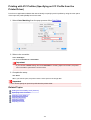
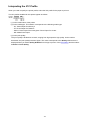
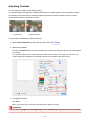
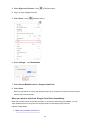
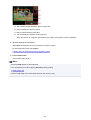
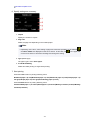
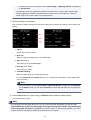
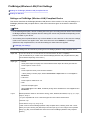
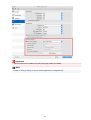
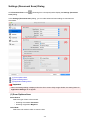
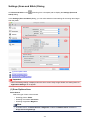
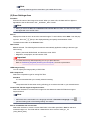
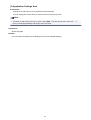
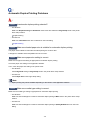
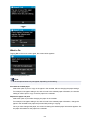
(3) Application Settings Area
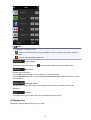
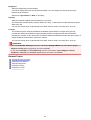
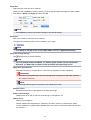
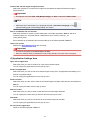
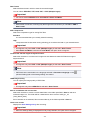
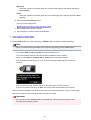
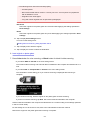
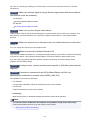
Open with an application
Select this when you want to enhance or correct the scanned images.
You can specify the application from the pop-up menu.
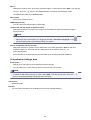
Send to an application
Select this when you want to use the scanned images as they are in an application that allows you to
browse or organize images.
You can specify the application from the pop-up menu.
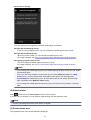
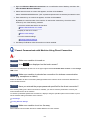
Send to a folder
Select this when you also want to save the scanned images to a folder other than the one specified in
Save in.
You can specify the folder from the pop-up menu.
Do not start any application
Saves to the folder specified in Save in.
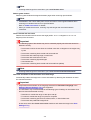
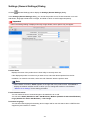
Note
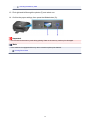
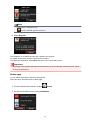
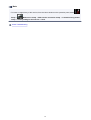
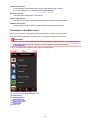
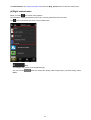
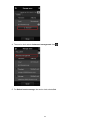
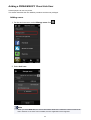
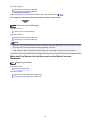
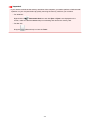
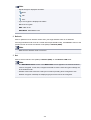
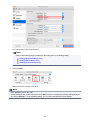
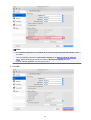
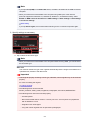
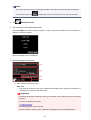
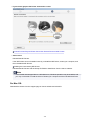
• To add an application or folder to the pop-up menu, select Add... from the pop-up menu, then click
(Plus) in the displayed dialog and specify the application or folder.
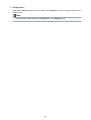
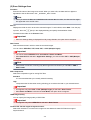
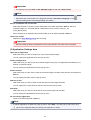
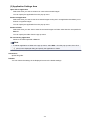
Instructions
Opens this guide.
Defaults
You can restore the settings in the displayed screen to the default settings.
566