1
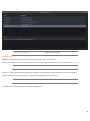
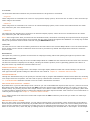
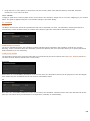
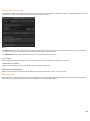
COLOR CURSOR
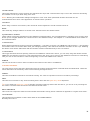
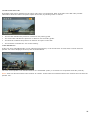
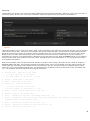
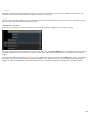
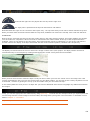
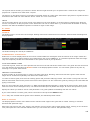
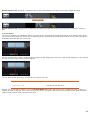
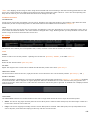
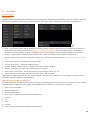
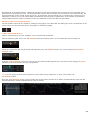
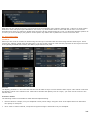
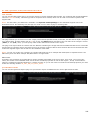
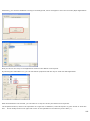
This toggle switches the cursor between the standard color style and a monochrome style. This is also useful for minimizing
the intrusion on the eyes while doing color work.
Note: Warning and confirmation dialogs still appear in color. Also other specialized interface elements are not
monochromatic since their color appearance is critical to their operation.
CONTRAST
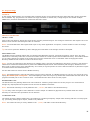
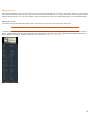
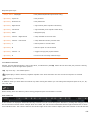
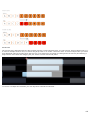
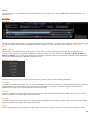
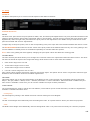
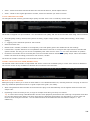
When using a Custom color scheme, this numerical control adjusts the overall contrast of the UI.
RESET
This resets any changes made to a Custom color scheme back to the default values.
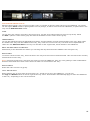
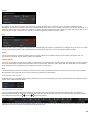
SQUARE/CIRCULAR MENU
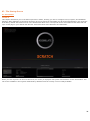
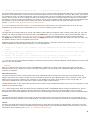
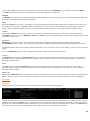
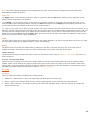
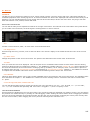
These options control the appearance of the SCRATCH Command Menu. The Command Menu is a floating, pop-up menu that
allows you to navigate between the various menus in the SCRATCH Player. See Chapter 5 – THE PLAYER for more details on
the Command Menu.
UI TRANSITIONS
When switching between the three sections of SCRATCH -- the Start-up Screen, the CONstruct and the Player -- the interface
cross-fades to the new section rather than just changing instantly. This makes the transition smoother on the eyes. Disabling
this button turns off the fade effect and the interface switches instantaneously to the new section.
UI ANIMATIONS
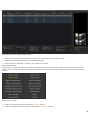
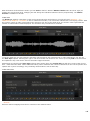
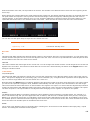
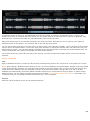
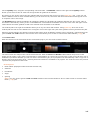
This toggle activates the auto-panning mode for the CONstruct. When this is active, you can click, drag and release and the
CONstruct will continue to pan as if it has momentum from the ‘push’ you’ve given it.The CONstruct continues to coast along
until you click on the interface or until the beginning or end of the CONstruct is reached.
MIRROR
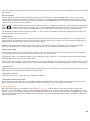
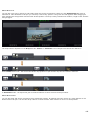
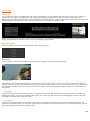
This set the amount of mirror effect on shots at the bottom of the slots in a CONstruct.
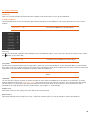
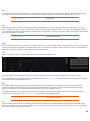
CONTROL GEARING
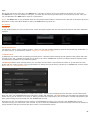
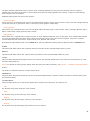
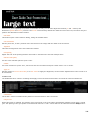
The next section of the User Menu determines how the Control Gearing behaves in Normal Mode and Shift Mode. These two
values determine the sensitivity of the Control Gearing throughout the UI.
NORMAL
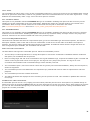
This sets the default increment for all Control Gearing. The value is expressed in terms of a relative percentage.
SHIFT
This sets the increment for any Control Gearing that is done with the Quick Key: Shift depressed.
Tip: If you want the Quick Key: Shift to actually decrease sensitivity rather than increase it, you can do so by inverting the
two values. The Shift value should be less than the Normal value.
DRAG THRESHOLD
This is the time required to hold the mouse button down before a drag action is started as opposed to a regular click action.
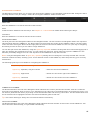
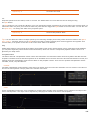
VECTOR MODE
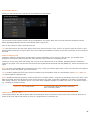
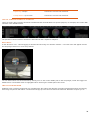
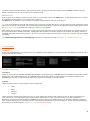
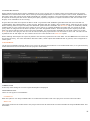
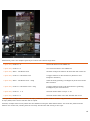
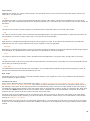
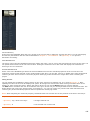
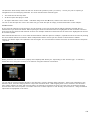
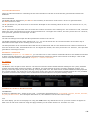
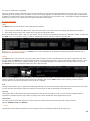
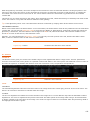
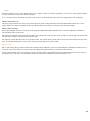
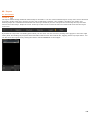
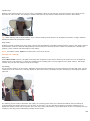
This specifies the orientation of the Tracker Balls in the COLOR MODULE.
Normally the order is:
32