1
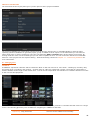
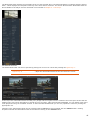
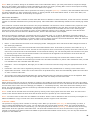
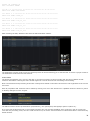
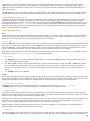
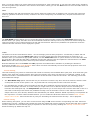
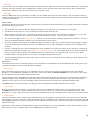
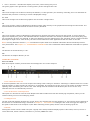
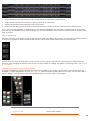
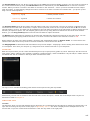
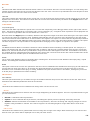
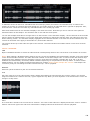
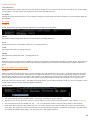
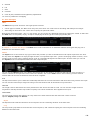
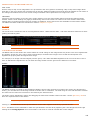
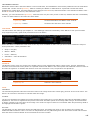
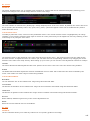
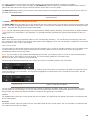
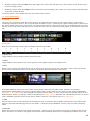
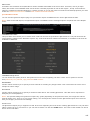
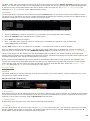
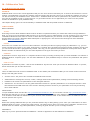
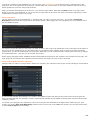
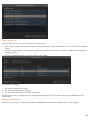
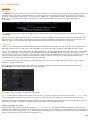
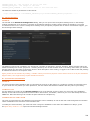
Reverse Assemble This option will - similar to an EDL conform - use the clip in the first slot of the current CONstruct as a match for all events. However, in addition if the AAF contains different tracks the Assemble will look for additional shots on the current CONstruct; the shot in the second slot will be used to reverse-assemble events on the second track, the shot in the third slot for events in the third track and so on. MATCHING CLIPS The right part of the dialog is used for displaying matching clips -similar as for the EDL and ALE conform discussed earlier in this chapter. There is a difference however in that the AAF/XML conform will only include the best/bottom match in the final assemble. ASSEMBLE Similar to the EDL conform you can assemble to the current or a new CONstruct. An AAF or XML can have multiple tracks, which are assembled to multiple sub-CONstructs/Tracks. After a successful assemble the dialog is closed and the new CONstruct is selected. If however errors occurred during the assemble the dialog remains open. The top line above the datagrid with the conform info is displayed in red as are the first column event numbers of the events that caused the errors. The Assemble button is disabled to prevent the assembling again to the same CONstruct inadvertently. To enable the Assemble button again you must close the dialog and reopen it by using the Edit Conform button in the Media menu. Before doing another assemble you first should inspect the failed events and possibly deactivate them. Include Duplicates This option will put any additional matches as version in the corresponding slot. Stage Inputs If SCRATCH encounters an (unsupported) effect with (multiple) inputs this option allows you to have the inputs placed in the staging area of the main input. Import Meta Data With an AAF conform you can optionally import and link all available meta-data (name-value pairs) to the matched shot. 12 - Media Browser GENERAL The Media Browser displays a list of all Shots in the current project and allows for easy searching, sorting and filtering of clips as well as the ability to modify the properties of multiple clips at once. The Media Browser is opened with the corresponding button on the main menu bar of the CONstruct. The Media Browser has a number of different views which can be selected from the tab-controls at the top of the dialog: Base: shot basic metadata and construct position, Grade: information on shot grades and management of source remapping and grading LUTs, Files: show shot media path and re-link shots if media was moved , Audio: show audio linked to shot and functions to automatically match and link shots with audio files, Shot Config: manage all media-type specific properties - e.g. debayer options, Metadata: show and manage all (extended) meta data of shots. Next to the different views there are a number of common functions that are available from any of the views. 82