1
nada Documentation, Release 4.0
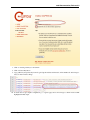
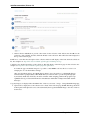
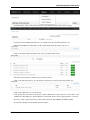
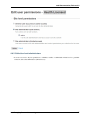
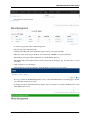
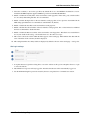
• Select All pages from the menu.
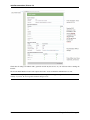
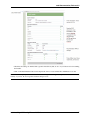
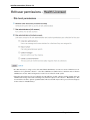
• To add a new page click on the Add New Page button
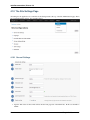
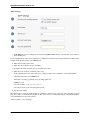
• Give the page a Title in the Title field
• Clicking in the URL field will automatically suggest a name for the page in the URL
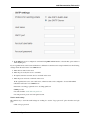
• Enter the contents for the page in the Body section. Plain text or HTML is accespted by this field.
• Then indicate if the page should be published or not in the Publish dropdown
• The Weight field tells the NADA in what order this menu item should display. E.g. 0 would be first, 1 second
and 2 third.
• Click on Update to save the changes.
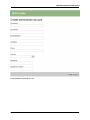
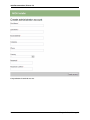
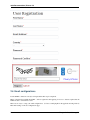
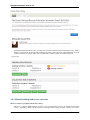
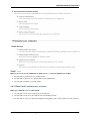
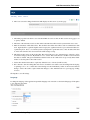
• View the changes from the user interface: In this Example a Contact Us page was created.
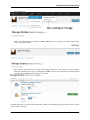
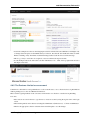
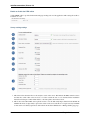
• It is also possible from the Menu Management screen to add a menu link that links to an existing page on another
site (rather than creating a page itself).
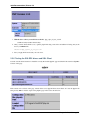
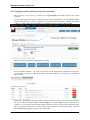
• To change the order in which the menu items display on the user interface, use the Reorder Menu button on the
Menu Management screen.
4.9. Manage Site Pages and Menus
63