1
Managing Alarms
9.5
Enable/Disable
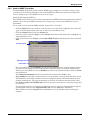
The Enable/Disable tab in the Alarms window allows you to customize the treatment of alarms and
return-to-normal events for selected alarm sources. Through this function, you may:
• Activate or deactivate alarms and return-to-normal events
• Classify alarms as critical or non-critical
• Specify whether an operator must acknowledge alarms and return-to-normal events
9.5.1
Enable or Disable Features
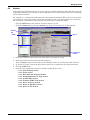
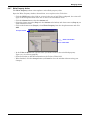
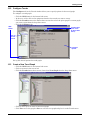
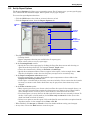
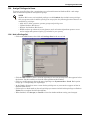
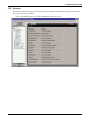
To access the Enable/Disable functions:
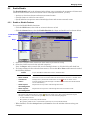
• Click the GEO button, then click on an item in the tree at left.
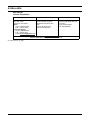
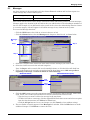
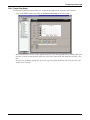
• Click the Alarms button, then the Enable/Disable tab. Steps are listed in red, as shown below.
Enable/Disable
tab
Step 3
Step 1
Step 2
Features
1. Select the categories that contain the alarm sources you want to set up.
2. Select the alarm sources for the selected categories.
Note: In Steps 1 and 2, control-click to select multiple items, or click the Select All check box.
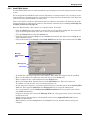
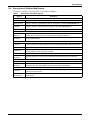
3. To change settings for the selected alarm sources, click on the All or None radio button for each of
the following features:
Feature
If you click All to enable this feature, SiteScan Web:
• Alarm enabled
Generates an alarm when specified conditions occur in the alarm source.
• Return enabled
Generates a return-to-normal when the alarm source returns to a normal state.
• Classified as
critical *
Changes the system-wide alarm button to red
when an alarm occurs.
Critical alarms that pass through a modem are delivered to the SiteScan Web
server immediately.
• Alarm requires
acknowledgement
Requires that an operator acknowledge the alarm.
• Return requires
acknowledgement
Requires that an operator acknowledge the return-to-normal event.
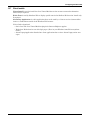
* Note: If the Classified as critical feature is disabled (None button selected), SiteScan Web changes
the system-wide alarm button to yellow
when an alarm occurs. Non-critical alarms that pass
through a modem are stored in the gateway until one of the following happens:
• A critical alarm occurs.
• The gateway is contacted by SiteScan Web.
• The gateway buffer is full, at which time all alarms are sent to SiteScan Web.
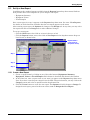
• When finished, click the Accept button (or Cancel to close the window without saving your
changes).
32