1
Radio Wave Monitor
◆ Deleting All Data
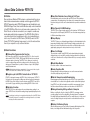
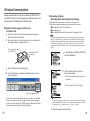
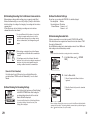
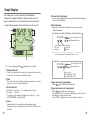
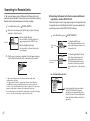
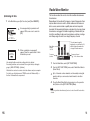
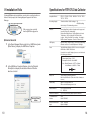
1. In the Main Menu, open [Set Functions] and [Clear MEMORY] .
2. A message asking for permission will
appear, if OK, move arrow to and click
[OK] .
������
���������
� � � �� � � � � � � � � � �
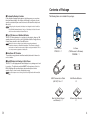
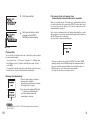
3. When completed, a message will
��������
� � � � �� �� �
appear. Press the operation dial to finish
the deletion process.
・Data deletion can also be carried out via the software and your computer.
For details, see the Help menu in『T&D Recorder for Windows US』or
the User' s Manual that accompanies it.
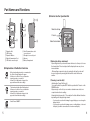
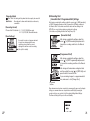
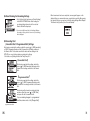
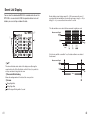
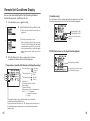
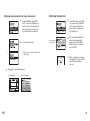
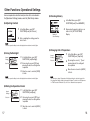
Radio Wave
Strength
(0 to 10)
Frequency
Channel
The radio wave strength is
displayed in a scale from 0 to 10,
with the higher the number the
stronger the radio waves are.
Frequency Channel
「 」…More Channels Mark
▲
・Recording Conditions and other settings will not be deleted.
Recording conditions can be returned to the original factory settings by
going to [REC SETTINGS] – [Initialize] .
This function enables the user to check the condition of radio wave
transmissions.
Depending on the location of the logger, at special frequencies there
may be some instances in which, due to radio wave interference or
other causes, communication capability does not meet expected
standards. To help avoid interference and reduce the chances of poor
transmission, we suggest that before registering a Remote Unit you
check the condition of radio wave transmissions and when creating a
new Group assign the units to an empty frequency channel.
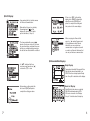
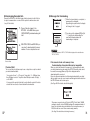
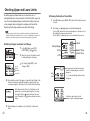
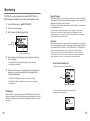
1. From the Main Menu, select [SET FUNCTIONS].
2. From the [SET FUNCTIONS] menu, select Radio Wave Monitor.
(Wave Check)
3. Up to 4 channels can be viewed at one time and by moving the
operation dial you can move back and forward to view other
channels.
4. Close the Radio Wave Monitor by pressing in on the operation
dial. (Returns to the [SET FUNCTIONS] Menu)
Note
・While using the Radio Wave Monitoring Function, the Auto Power Off Function will be
disabled .
55
56