1
User manual - EuroCAD Pattern Designer
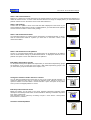
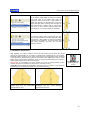
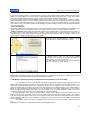
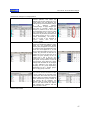
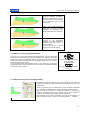
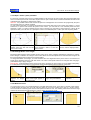
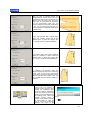
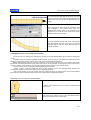
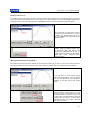
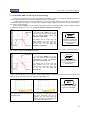
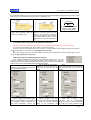
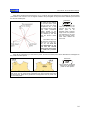
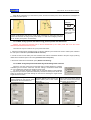
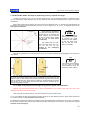
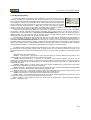
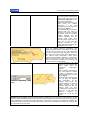
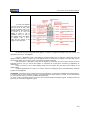
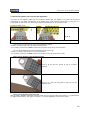
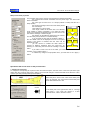
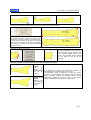
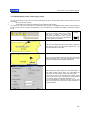
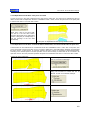
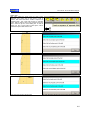
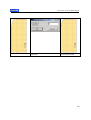
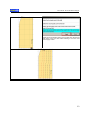
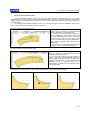
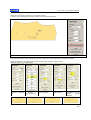
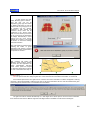
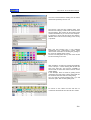
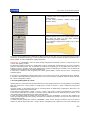
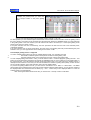
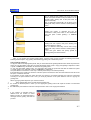
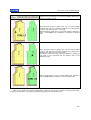
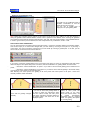
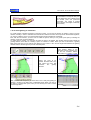
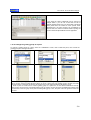
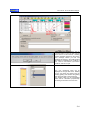
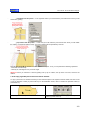
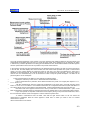
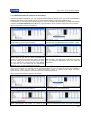
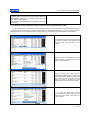
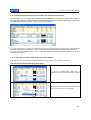
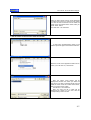
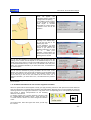
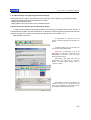
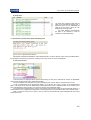
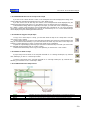
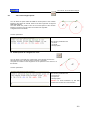
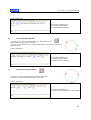
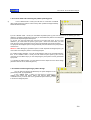
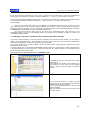
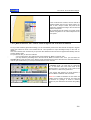
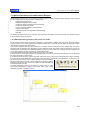
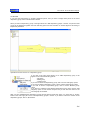
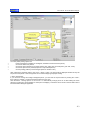
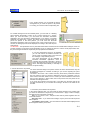
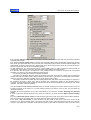
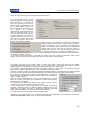
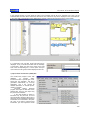
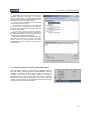
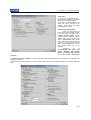
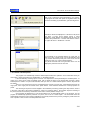
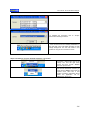
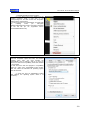
All problems find during importing files, will be
displayed separate for each piece, in a Warnings
window. In this window, you will be able to display
more information about the detected problems and
warns about what you will have to check.
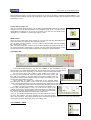
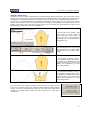
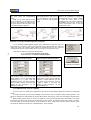
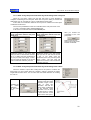
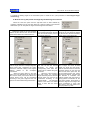
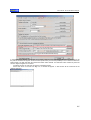
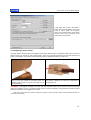
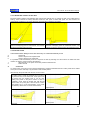
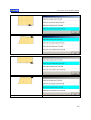
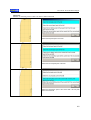
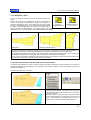
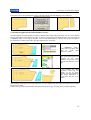
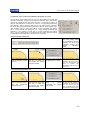
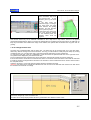
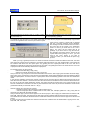
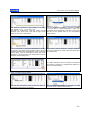
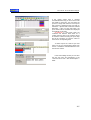
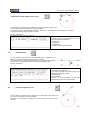
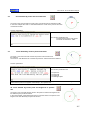
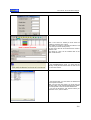
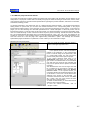
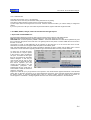
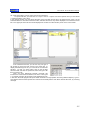
The user has the possibility to sort all problems
detected by pieces or by errors.
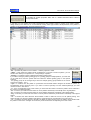
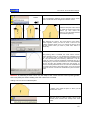
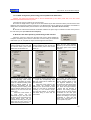
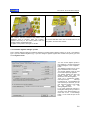
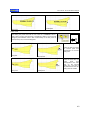
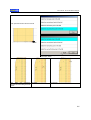
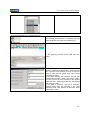
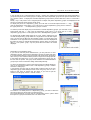
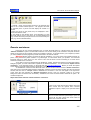
If you want to sort the errors by pieces, the
piece names will be displayed in the “Detected
problems” area followed by all problems detected
for the mentioned piece.
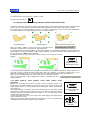
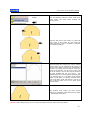
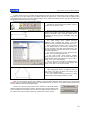
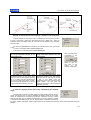
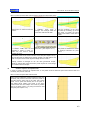
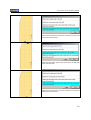
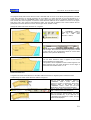
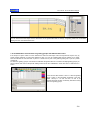
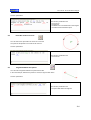
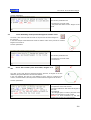
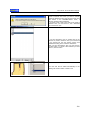
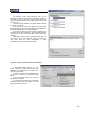
If you want to sort the errors by “Errors /
Problems”, the problems name will be displayed in
the “Detected problems” area followed by the piece
names where the problem was detected.
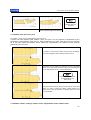
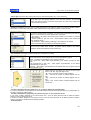
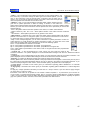
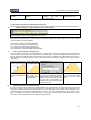
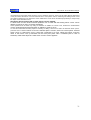
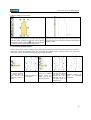
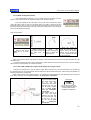
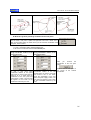
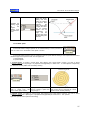
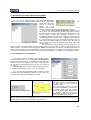
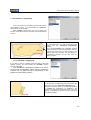
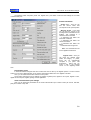
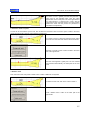
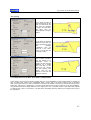
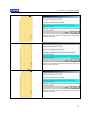
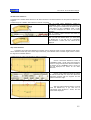
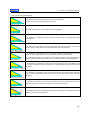
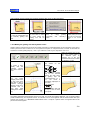
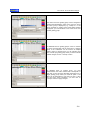
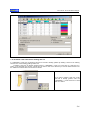
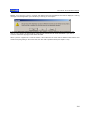
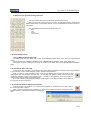
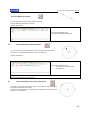
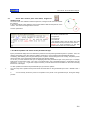
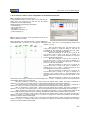
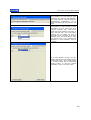
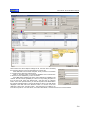
All problems detected while importing the exp
files, can be saved in the “Piece information”
window. For this, the user must check the “Save
automatically in Piece information” option from the
window bottom.
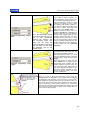
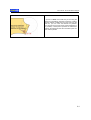
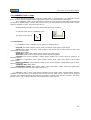
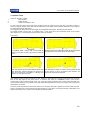
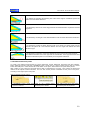
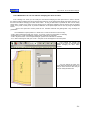
1.13.6 Export a project in another standard DXF format
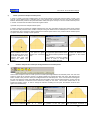
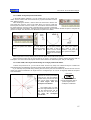
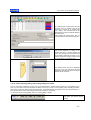
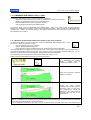
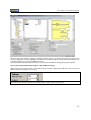
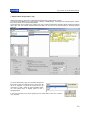
EuroCAD Pattern Designer can export files in standard formats as
DXF, DXF-AAMA, and in DXF format for INVESTRONICA, LECTRA,
GERBER or ASSYST. To export a file in DXF format, open the
« Project » menu and then the « Export » submenu. A list with all
exportable DXF file types will open. After you select the preferred
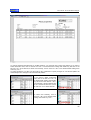
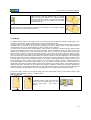
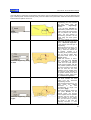
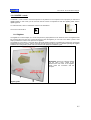
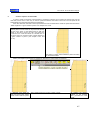
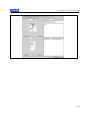
DXF file type from the list, an export page will open. The export page
contains a preview window for the exported file and some options for
the format and content of the exported file.
331