1
User manual - EuroCAD Pattern Designer
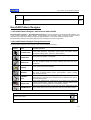
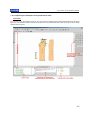
1.7 « DRAW TOOL » MODE
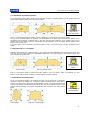
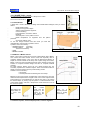
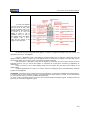
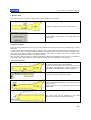
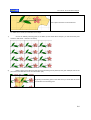
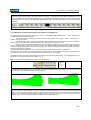
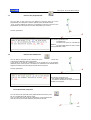
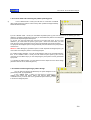
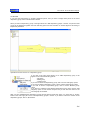
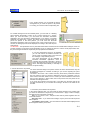
To enter this working mode, you must click on « DRAW TOOL» button.
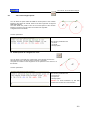
The cursor for this mode is
1.7.1 Introduction
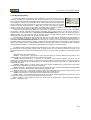
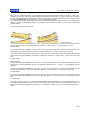
EuroCAD Pattern Designer has two ways to create new pieces: by digitization or by DRAWING. Drawing
supposes the presence of a pattern whose shape will be reproduced without requirements for knowledge about
pattern design. To build new pieces from scratch you must have enough knowledge to create patterns. The computer
and the EuroCAD Pattern Designer program can only assist the designer in order to facilitate his and to increase the
design accuracy. The time required for a computer assisted base pattern design is reduced to half by comparison
with the manual design; grading a pattern assisted by computer is 4 times faster than the manual grading.
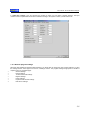
To build a new piece you must draw lines and free points, and use different functions to set distances,
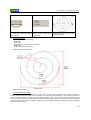
angles and movements. EuroCAD Pattern Designer offers also some special functions to draw circles and ellipses
together with rectangles and squares.
1.7.2 Free drawing
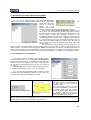
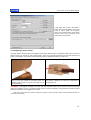
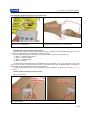
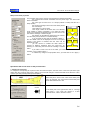
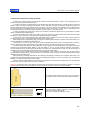
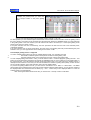
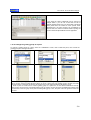
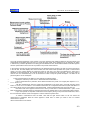
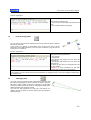
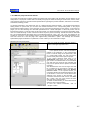
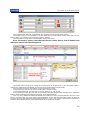
The easiest mode to create a new piece is the free drawing. Enter the « DRAW TOOL» mode and activate
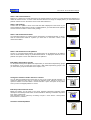
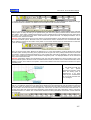
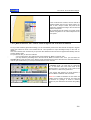
the corresponding function to draw the next element. Click on « Draw free or assisted (with points and lines) » button
if you want to create a line.
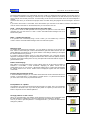
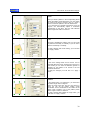
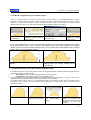
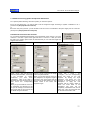
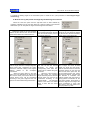
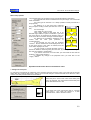
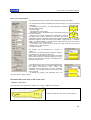
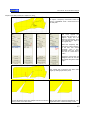
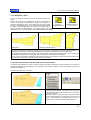
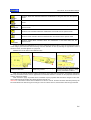
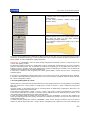
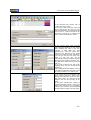
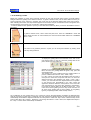
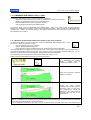
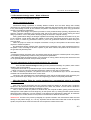
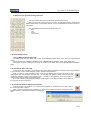
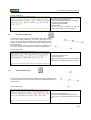
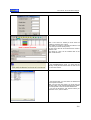
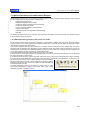
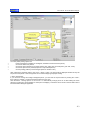
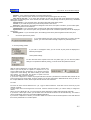
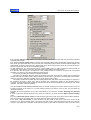
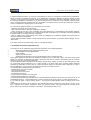
Use one of the next functions:
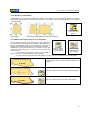
“Draw free or assisted (with points and curves)”
“Draw arc by 3 points”
“Draw arc by 2 points and radius”
“Draw arc by 2 points and angle”
“Add French curve to pattern contour”
if you want to draw or a add a new curve to the pattern.
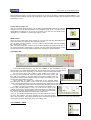
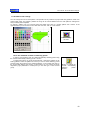
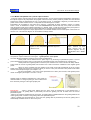
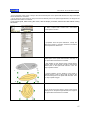
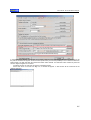
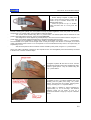
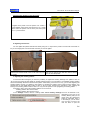
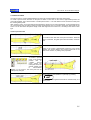
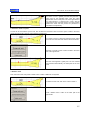
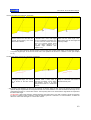
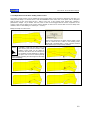
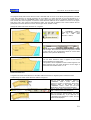
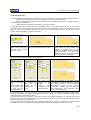
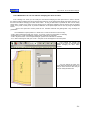
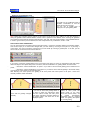
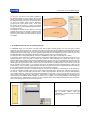
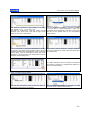
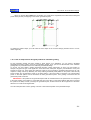
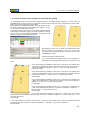
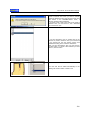
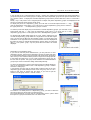
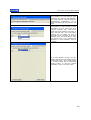
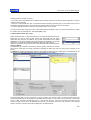
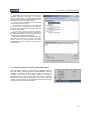
Pick one of the drawing functions and make a click somewhere in the work space to draw freely. A new point
is set; this will be the origin point of the new piece. Move the cursor by moving the mouse to the next point and click
again on the left mouse button. After each cursor (mouse) movement, at each left mouse click, a new point will be
applied and it will be automatically joined with previous by a line or by a curve. During freely drawing you can select
any function from draw tool bar. For example, after creating a straight line you can pick up the “Draw free or assisted
(with points and curves)” to create a curve next time.
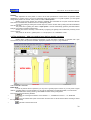
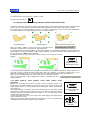
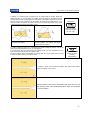
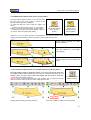
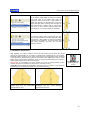
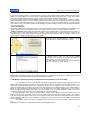
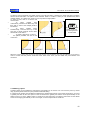
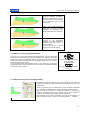
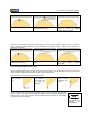
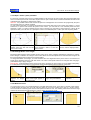
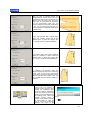
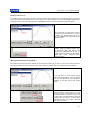
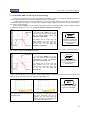
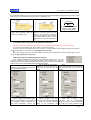
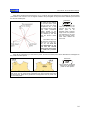
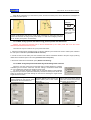
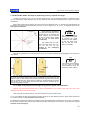
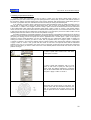
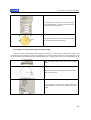
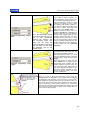
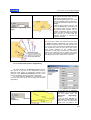
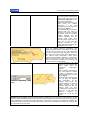
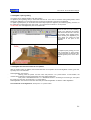
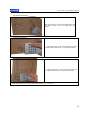
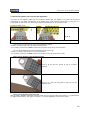
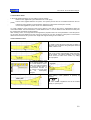
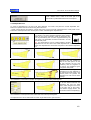
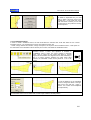
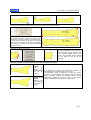
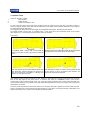
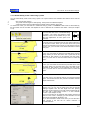
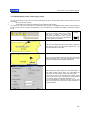
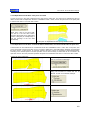
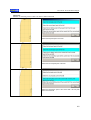
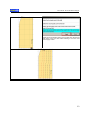
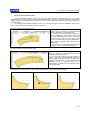
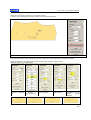
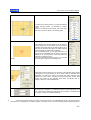
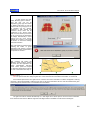
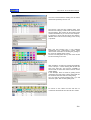
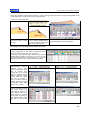
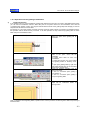
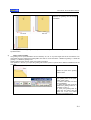
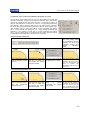
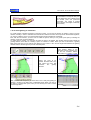
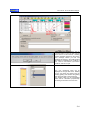
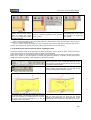
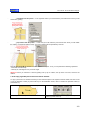
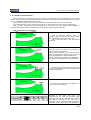
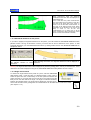
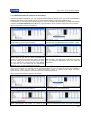
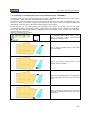
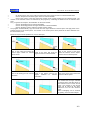
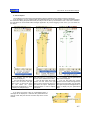
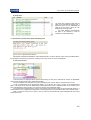
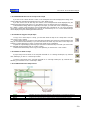
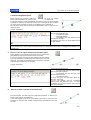
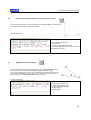
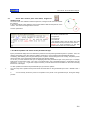
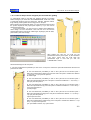
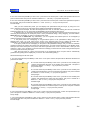
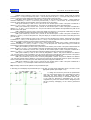
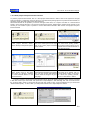
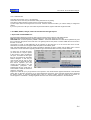
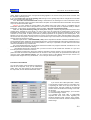
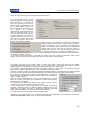
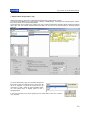
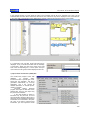
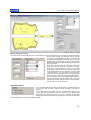
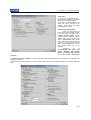
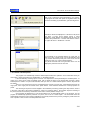
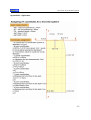
Draw a new pattern:
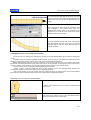
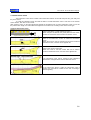
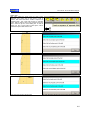
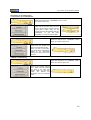
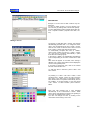
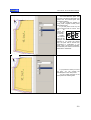
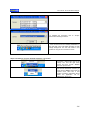
Click on « Draw free or assisted
(with points and lines) » button.
-
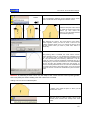
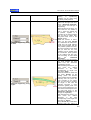
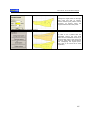
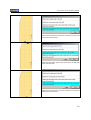
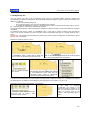
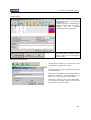
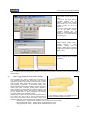
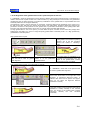
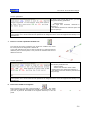
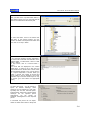
Click with the left
mouse button in a
free
workspace
area. The first point
is set.
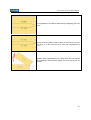
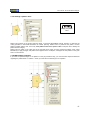
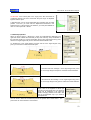
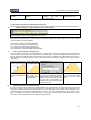
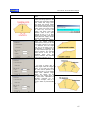
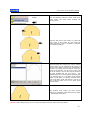
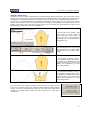
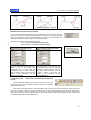
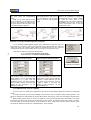
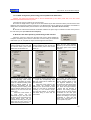
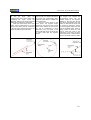
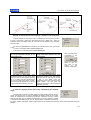
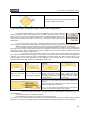
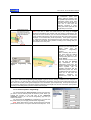
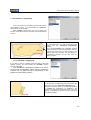
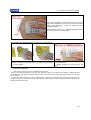
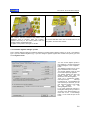
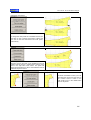
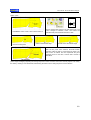
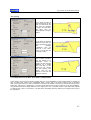
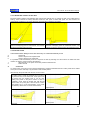
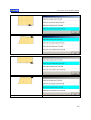
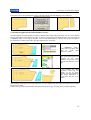
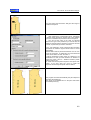
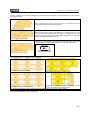
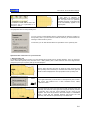
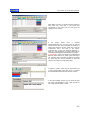
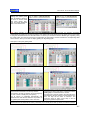
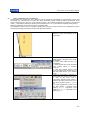
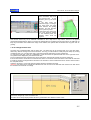
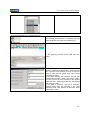
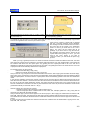
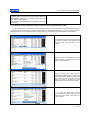
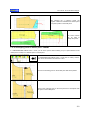
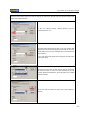
Move the cursor to
the next point and
click with the left
mouse button
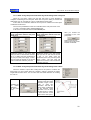
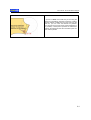
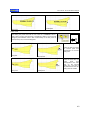
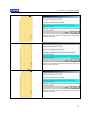
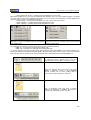
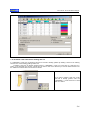
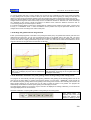
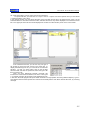
Repeat
previous
operation; at each click, a
new point will be added.
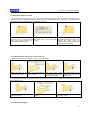
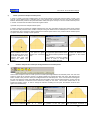
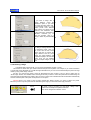
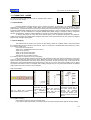
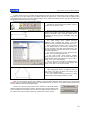
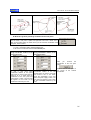
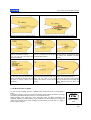
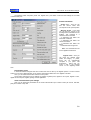
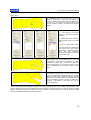
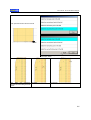
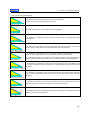
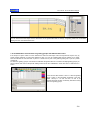
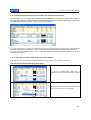
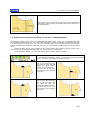
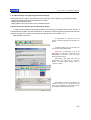
During
the
drawing
process, the user can
choose any function from
draw tool mode mentioned
above.
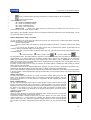
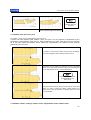
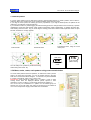
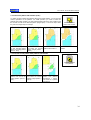
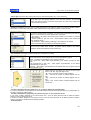
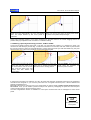
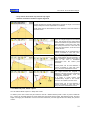
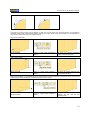
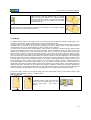
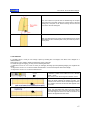
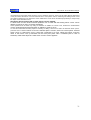
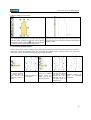
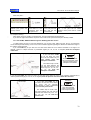
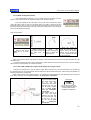
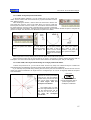
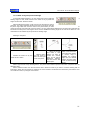
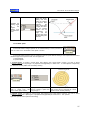
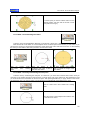
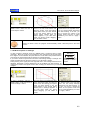
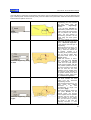
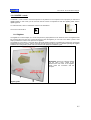
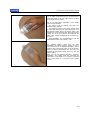
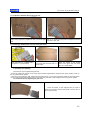
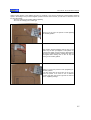
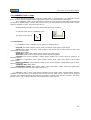
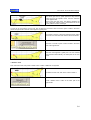
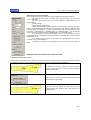
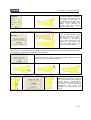
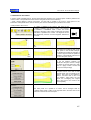
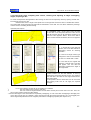
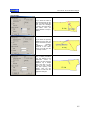
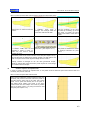
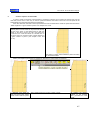
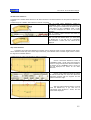
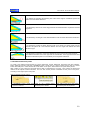
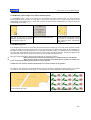
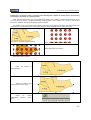
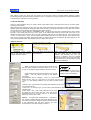
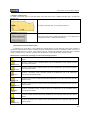
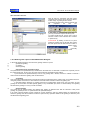
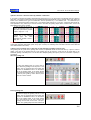
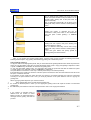
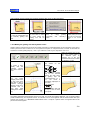
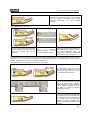
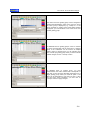
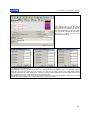
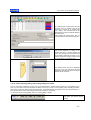
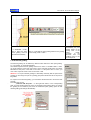
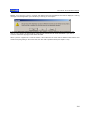
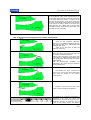
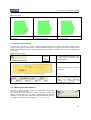
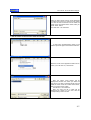
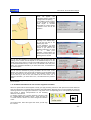
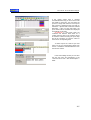
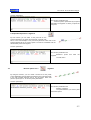
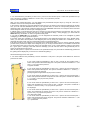
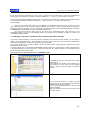
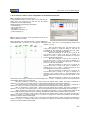
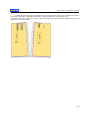
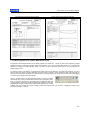
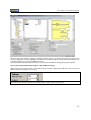
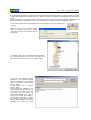
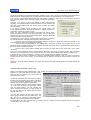
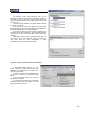
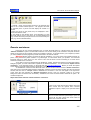
To end pattern drawing:
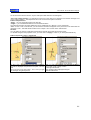
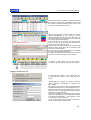
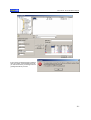
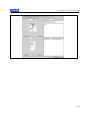
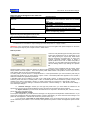
Close pattern contour by clicking on the first point.
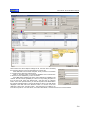
If you click the right mouse button, the pattern contour will remain opened and the pattern will stay unfilled.
74