1
4
INSTALLING LEARNIX
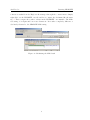
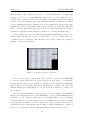
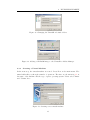
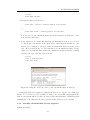
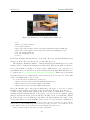
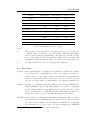
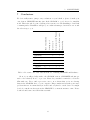
Figure 22: Installing the VirtualBox Guest Additions
$ sudo ./VBoxLinuxAdditions-x86.run
This command will take a moment to complete, and then prompt you to reboot. Please
do so. When the VM is back up, you should notice some usability improvements. Try, for
instance, full-screen mode: press the host key (default is the right CTRL key) together
with the F key. The LEARNIX system running inside the VM should now cover the
whole screen, and the LEARNIX desktop should have re-adjusted to those settings.
Nifty, isn’t it?
4.3.6
Keeping VirtualBox up-to-date
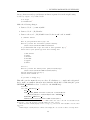
It’s important that the version number of the Guest Additions matches that of the
VirtualBox Host. If you update to a newer version of VirtualBox, then the Guest
Additions need to be re-installed on the Guest. Please refer to section 22.
In addition to re-installing the Guest Addition when a newer version of VirtualBox
is installed on the host, the Guest Additions need some maintenance whenever the
kernel of the Guest OS changes.
Once you’ve run LEARNIX/Ubuntu/LINUX for a while, you will receive notification
from the Update Manager letting you know that newer version of some of the installed
software are available. Obviously, this only happens if you are connected to the Internet.
You are strongly advised to install those updates. They are usually bug fixes that
iron out glitches with the software, or make your system otherwise more secure, stable
or usable. Some of those upgrades, but not all of them will require the Guest to be
re-started. If this is the case, the Update Manager will prompt you to do so.
If, as part of the upgrade, a newer version of the LINUX kernel is installed, chances
are the Guest Additions or at least some of the functionality they provide no longer
work. If this is the case, please type the following command into a terminal window:
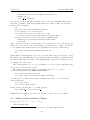
$ sudo /etc/init.d/vboxdrv setup
You will need to reboot the VM for the changes to become effective.
21