1
V6000_CUXJ_EN.book
45 ページ
2009年6月5日 金曜日 午前11時57分
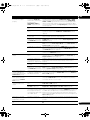
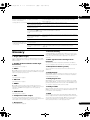
Setting
Options
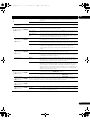
Language
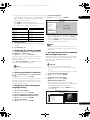
Subtitle Language
English
* For some discs, it may not
be possible to change to the available languages
selected language.
Other
Explanation
07
Select this to set the default subtitle language for BD-ROM and DVD-Video
playback to English.
Choose a language from the listed languages to set the default subtitle
language for BD-ROM and DVD-Video playback.
Continue to the next screen to set the default subtitle language for BD-ROM
and DVD-Video playback. You can select the language name or enter the
code number (see on page 54 for the code table).
If a language not recorded on the BD/DVD is set, one of the recorded languages is automatically selected and played.
BDMV/DVD-Video Menu
w/Subtitle
Lang.
Language
* For some discs, it may not available languages
be possible to change to the
selected language.
Other
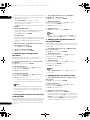
Sets the language of BD-ROM and DVD-Video menus to the same as that set
for the subtitle language.
Choose a language from the listed languages to set the default language for
BD-ROM and DVD-Video menus.
Continue to the next screen to set the default menu language for BD-ROM
and DVD-Video menus. You can select the language name or enter the code
number (see on page 54 for the code table).
If a language not recorded on the BD/DVD is set, one of the recorded languages is automatically selected and played.
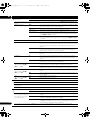
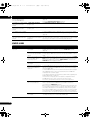
Subtitle Display
Data Management
Individual/Shared Data
Erase
On
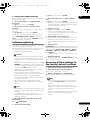
Select this to display the subtitles.
Off
Select this if you do not want to display the subtitles. Note that on some discs
the subtitles are displayed by force.
Use this to display the list of data used for the BD-LIVE and BONUSVIEW functions and to erase the
data (page 49).
Remove the disc from the disc tray when changing the setting.
Application Data Erase
Use this to erase bookmarks, high scores of games and other data (page 49).
Remove the disc from the disc tray when changing the setting.
Storage Format
Select this to format the storage device on which the data used by the BD-LIVE and BONUSVIEW
functions is stored (page 49).
Remove the disc from the disc tray when changing the setting.
Setup Navigator
Start making the settings using the Setup Navigator menu. For details, see Making settings using
the Setup Navigator menu on page 23.
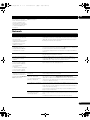
Playback
Field
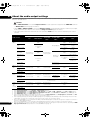
This eliminates instability of the picture when playback is paused.
Frame
This makes pictures clear when playback is paused, but instability may be
observed.
Auto
Field or Frame is switched automatically according to the disc or file being
played.
On
Select this to display the angle mark, secondary video mark and secondary
audio mark on the TV screen (pages 30 and 31).
Off
Select this if you do not want to display the angle mark, secondary video mark
and secondary audio mark on the TV screen.
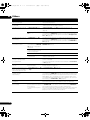
BD
The BD layer of hybrid discs with two or more layers (BD and DVD or CD) is
played.
DVD
The DVD layer of hybrid discs with two or more layers (BD and DVD) is played.
If there is no DVD layer, the BD layer is played.
CD
The CD layer of hybrid discs with two or more layers (BD and CD) is played. If
there is no CD layer, the BD layer is played.
Still Picture
Angle/Secondary Indicator
Hybrid Disc Playback
Remove the disc from the disc tray when changing the setting.
BDMV/BDAV Playback
Priority
BDMV
Select this to play the BDMV format on BD-R/-RE discs containing both
BDMV and BDAV formats.
BDAV
Select this to play the BDAV format on BD-R/-RE discs containing both
BDMV and BDAV formats.
Remove the disc from the disc tray when changing the setting.
45
En