1
TEW-732BR
TRENDnet User’s Guide
Advanced Router Setup
Access your router management page
Note: Your router management page http://192.168.10.1 is accessed through the use of
your Internet web browser (e.g. Internet Explorer, Firefox, Chrome, Safari, Opera) and
will be referenced frequently in this User’s Guide.
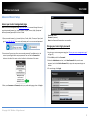
1. Open your web browser (e.g. Internet Explorer, Firefox, Safari, Chrome, or Opera) and
go to http://192.168.10.1. Your router will prompt you for a user name and password.
User Name: admin
Password: (xxxxxxxx)
Note: User Name and Password are case sensitive.
Change your router login password
Main > Password
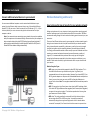
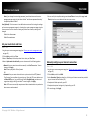
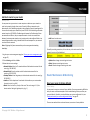
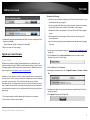
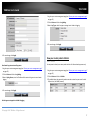
2.Your router will prompt you for a user name and password. For added security, the
router is preconfigured with a unique password. You can find the Password on a
sticker on the side of the router and on the label on the bottom of the router.
1. Log into your router management page (see “Access your router management page”
on page 21).
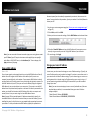
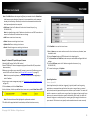
2. Click on Main, and click on Password.
3. Under the Administrator section, in the New Password field, enter the new
password, and in the Confirm Password field, retype the new password again to
confirm.
4. To save changes, click Apply.
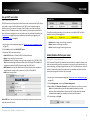
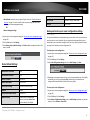
3. Enter your Username and Password, select your preferred language, then click Login.
© Copyright 2013 TRENDnet. All Rights Reserved.
21