1
1. Getting Started
• When using a host name under Windows Server 2003/2003 R2/2008/2008 R2/2012 with
IPv6 protocol, perform host name resolution using an external DNS server. The host file cannot be
used.
• To use JAWS 7.0 under Web Image Monitor, you must be running Windows and Internet Explorer
6.0 or a later version.
• If you are using Internet Explorer 8.0 or higher, downloading will be slower than with other
browsers. To download faster with Internet Explorer 8.0 or higher, open the browser's [Internet
Options] menu and register the printer's URL as a trusted site, and then disable SmartScreen filter
for trusted sites. For details about these settings, see the Internet Explorer Help files.
• You can access Web Image Monitor more quickly by registering the printer's URL as a bookmark.
Note that the URL you register must be the URL of the top page, which is the page that appears
before login. If you register the URL of a page that appears after login, Web Image Monitor will
not open properly from the bookmark.
• When you configure settings using Web Image Monitor, do not log in from the control panel. The
settings you have configured using Web Image Monitor may become invalid.
Displaying the top page
There are two modes available with Web Image Monitor: guest mode and administrator mode.
Displayed items may differ depending on the printer type.
Guest mode
This mode requires no login to enter.
In the guest mode, the printer status, settings, and print job status can be viewed, but the printer
settings cannot be changed.
Administrator mode
This mode requires an administrator login to enter.
In the administrator mode, you can configure various printer settings.
• When entering an IPv4 address, do not begin segments with zeros. For example: If the address is
"192.168.001.010", you must enter it as "192.168.1.10".
1. Start your Web browser.
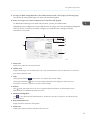
2. Enter "http://(printer's IP address or host name)/" in your Web browser's address bar.
The top page of Web Image Monitor appears.
If the printer's host name has been registered on the DNS or WINS server, you can enter it.
When setting SSL, a protocol for encrypted communication, under the environment in which server
authentication is issued, enter "https://(printer's IP address or host name)/".
22