1
Call Monitor folder panes
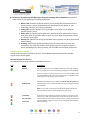
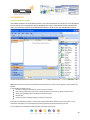
The Call Monitor folder contains the following panes that you can hide or show:
The Phonebook Pane, which shows the Extensions list and the Contacts folder and enables
drag-and-drop call handling.
The Notes Pane, which enables you to type and add call notes.
The Parties pane, which shows the parties in a conference call other than yourself.
The ViewPoint Softphone Dial Pad, if you are using the ViewPoint as your primary or secondary
phone.
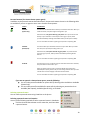
Call Monitor folder columns
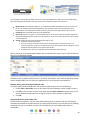
The Call Monitor folder contains several columns that show detailed information about a call, such as
Trunk Name and Target Station. Some of the columns are hidden by default. For an explanation of the
columns, press F1 in the Call Monitor folder for its online Help
Displaying the Call Monitor Folder Automatically
Wave can open the Call Monitor folder automatically when you place or return calla form some
ViewPoint folders. When the Call Monitor folder opens automatically, it appears in front of all other
open windows on your computer.
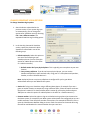
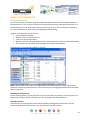
To display the Call Monitor folder automatically
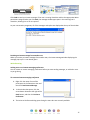
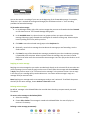
1. Choose Tools > Options. The Options
dialog opens.
2. Click the ViewPoint \ Call Monitor tab.
3. Under Display Call Monitor in the
following situations, select one or both of
the following checkboxes:
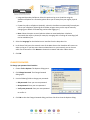
a. Placing new calls from Contacts
or Extensions. The Call Monitor
folder opens each time you place
a call from the Contacts or
Extensions folder.
b. Returning calls from Voice
Messages or Call Log. the Call
Monitor folder opens each time you return a call from a voice message or Call Log entry.
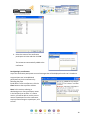
4. To display the Call Monitor folder automatically on incoming calls, click the ViewPoint \ Call
Alerts tab and check Display the Call Monitor.
5. Click OK.
21