1
)
-
Utilities CD-ROM that shipped with you printer and install
these first.
2
Prepare your document for color printing and access the
Print dialog box by selecting Print.. from the File menu. Once
you are in the main print dialog box, select Color Matching
from the General pop-up menu.
3
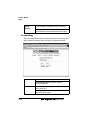
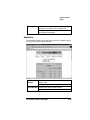
You will be presented with three pop-up menus once you are
in the Color Matching section. Listed below are the three
menus.
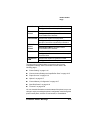
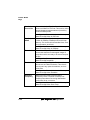
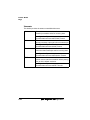
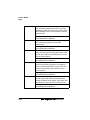
Print Color
Intent
Printer Profile
4
You will need to change the Print Color: pop-up menu
from ColorSync Color Matching to Color/Grayscale. If this
selection is not made, you will not activate the printer resident color matching.
5
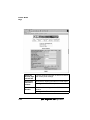
Select Printer Specific Options from the General pop-up
menu. Set ICC Color Matching to Enabled. Listed below are
the options you will need to set to use the printer resident
color matching.
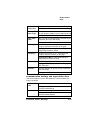
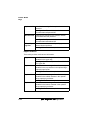
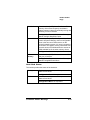
ICC RGB Source
ICC Simulation
RGB Source allows you to pick the type of monitor you are using.
Normally you will select Apple RGB since this is a common profile for
most Macintosh monitors. The ICC Simulation choice will allow you to
simulate another color output device's color space, such as SWOP or
Eurocolor. Leave the ICC Simulation setting at None if you do not
want to simulate another printer.
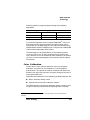
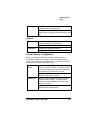
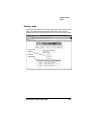
Prepress users are allowed to download their own custom ICC profiles via CrownAdmin software located on the QMS Software Utilities
CD-ROM. These custom ICC profiles are activated by selecting
Custom1, Custom2, and Custom3 from the ICC RGB Source or the