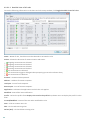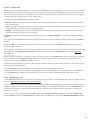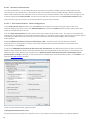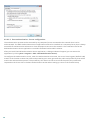
1
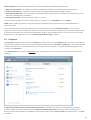
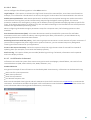
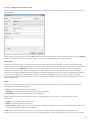
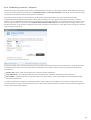
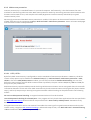
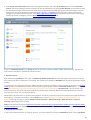
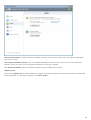
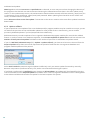
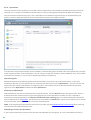
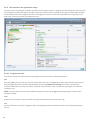
Authentication for update servers is based on the Username and Password generated and sent to you after
purchase. By default, no verification is required and the Username and Password fields are left empty.
Pre-release updates (the Pre-release update option) are updates that have gone through thorough internal testing
and will be available to the general public soon. You can benefit from enabling pre-release updates by having access
to the most recent detection methods and fixes. However, pre-release updates might not be stable enough at all
times and SHOULD NOT be used on production servers and workstations where maximum availability and stability is
required. The list of current modules can be found in Help and support > About ESET Smart Security. It is
recommended that basic users leave the Regular update option selected by default.
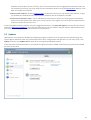
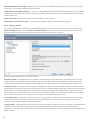
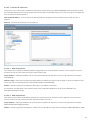
Click Setup... next to Advanced update setup to display a window containing advanced update options.
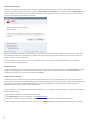
If you experience problems with an update, click Clear to delete temporary update files.
Do not display notification about successful update – Turns off the system tray notification at the bottom right
corner of the screen. It is useful to select this option if a full screen application or a game is running. Please note
that Gamer mode will disable all notifications.
4.5.1.1 Update profiles
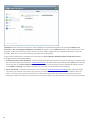
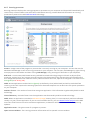
Update profiles can be created for various update configurations and tasks. Creating update profiles is especially
useful for mobile users who need an alternative profile for Internet connection properties that regularly change.
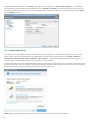
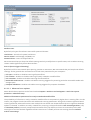
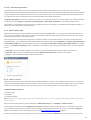
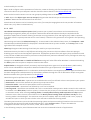
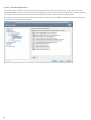
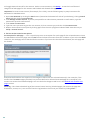
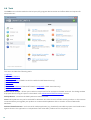
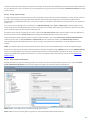
The Selected profile drop-down menu displays the currently selected profile and is set to My profile by default. To
create a new profile, click Profiles... and then click Add... and enter your own Profile name. When creating a new
profile, you can copy settings from an existing one by selecting it from the Copy settings from profile drop-down
menu.
4.5.1.2 Advanced update setup
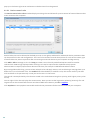
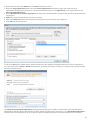
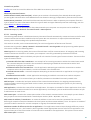
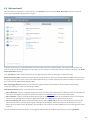
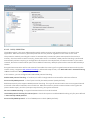
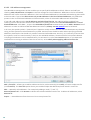
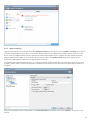
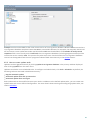
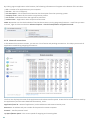
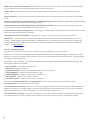
To view the Advanced update setup, click Setup.... Advanced update setup options include the configuration of
Update mode, HTTP Proxy and LAN.
4.5.1.2.1 Update mode
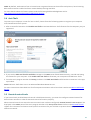
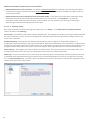
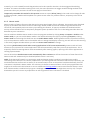
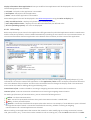
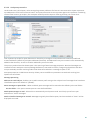
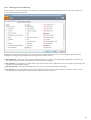
The Update mode tab contains options related to the program component update. The program enables you to
predefine its behavior when a new program component upgrade is available.
Program component updates (PCUs) include new features or make changes to features from previous versions.
PCUs can be performed automatically without user intervention, or you can choose to be notified each time a PCU is
performed. After a program component update is installed, a computer restart may be required. In the Program
component update section, three options are available:
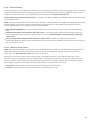
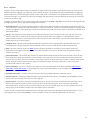
Never update program components – Program component updates will not be performed at all. This option is
suitable for server installations, since servers can usually be restarted only when they are undergoing
maintenance.
Always update program components – A program component update will be downloaded and installed
automatically. Please remember that a computer restart may be required.
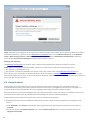
Ask before downloading program components – The default option. You will be prompted to confirm or refuse
program component updates when they become available.
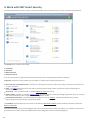
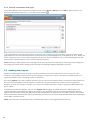
After a program component update, it may be necessary to restart your computer to provide full functionality of all
modules. The Restart after program component upgrade section allows you to select one of the following options:
Never restart computer – You will not be asked to restart, even if it is required. Please note that this is not
recommended, since your computer might not work properly until the next restart.
Offer computer restart if necessary – The default option. After a program component update, you will be
prompted to restart your computer in a dialog window.
If necessary, restart computer without notifying – After a program component upgrade, your computer will be
restarted (if required).
72