1
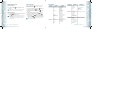
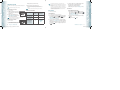
2. Select “Mobile Email” or “Mobile Web Mail” with the Directional Key up or down, press the OK Key [OK]. • Mobile Email: To connect Brew Smartlink. • Mobile Web Mail: To connect WAP Browser. 3. Browser launches. 4. Press the Directional Key up or down to select your Email provider, and then press the OK Key [OK]. 5. To send an Email, follow the on-screen prompts and functions. CHAT 4. To chat with Internet Messenger users, follow the on-screen prompts and functions. ERASE ALL To erase all messages stored in your Inbox, Drafts or Sent folders: 1. From standby mode, press the OK Key [OK] to unlock the keypad, [Message], then the Right Soft Key then press the Left Soft Key [Options]. • • • • Press “1. Erase Inbox” to erase all messages or only read message stored in the Inbox. Press “2. Erase Drafts” to erase all messages stored in the Drafts folder. Press “3. Erase Sent” to erase all messages stored in Sent Folder. Press “4. Erase All” to erase all messages stored in the Inbox, Sent, and Drafts folders. Locked messages cannot be erased. 1. From standby mode, press the OK Key [OK] to unlock the keypad, [Message], then slide out the then press the Left Soft Key QWERTY keyboard and press 8. Chat. 2. Browser launches. 108 up or down to select one of the 3. Press the Directional Key displayed chat rooms, and then press the OK Key [OK]. Chapter 6 − Messaging Menu 080625_TXT8010_ELVIS_M_EN_REV00.indd 108-109 2. Select “Yes” to erase the selected messages, then press the OK Key [OK]. A confirmation message appears. SETTINGS AUTO ERASE To configure received message settings: Automatically erases inbox messages when new messages arrive. 1. From standby mode, press the OK Key [OK] to unlock the keypad, then press the Left Soft Key [Message], then the Left Soft Key again for [Settings]. 1. Select “On” or “Off” by pressing the Directional Key then press the OK Key [OK]. 2. Press the Directional Key up or down to highlight one of the settings below, then press the OK Key [OK] to select it: 1. Select “On” or “Off” by pressing the Directional Key then press the OK Key [OK]. ENTRY MODE up or • On: All sent messages saved in the Sent box. • Off: All sent messages not saved in the Sent box. • Prompt: “Yes”, “No” dialogue box displayed after sent message. up or down • On: TXT message displayed automatically. • Off: TXT message displayed by going to the inbox or responding to interactive notification. PICVOICE AUTO RECEIVE AUTO SAVE 1. Select “On”, “Off” or “Prompt” by pressing the Directional Key or down then press the OK Key [OK]. • On: Oldest message erased from inbox automatically when Inbox is full. • Off: Oldest message not erased from inbox automatically when Inbox is full. TXT AUTO VIEW Sets an Entry Mode as a default. For example, if Abc Mode is the default, its icon will appear. 1. Select “Abc”, “ABC” or “123” by pressing the Directional Key down then press the OK Key [OK]. up or down up 1. Select “On” or “Off” by pressing the Directional Key then press the OK Key [OK]. up or down • On: Picture/Voice message downloaded automatically. • Off: Picture/Voice message must be retrieved from the inbox or at new Picture/Voice Message prompt. Messaging Menu − Chapter 6 Messaging Messaging EMAIL 1. From standby mode, press the OK Key [OK] to unlock the keypad, then press the Left Soft Key [Message], then slide out the QWERTY keyboard and press 7. Email. 109 2008.6.25 9:35:40 PM