1
GET IT NOW
GET IT NOW
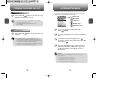
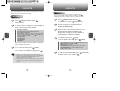
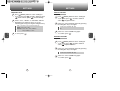
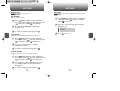
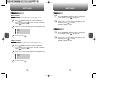
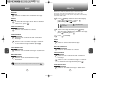
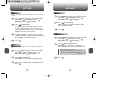
TAKE PIX
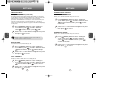
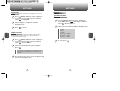
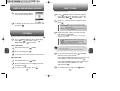
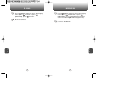
4 After taking the picture it will be displayed.
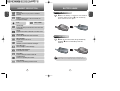
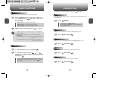
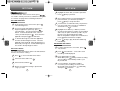
1 Press and hold side camera key or press
.
2 Point the camera lens at your subject. You can
check the picture framing through the main
display screen.
3 Press side camera key or press
[TAKE] to
take the picture.
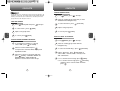
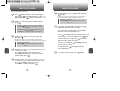
To view captured images, press
C
H
5
[SAVE].
To go back to idle mode without saving the
picture, press
.
To take another picture without saving the picture
you just took, press
[ERASE].
To send the picture to someone, press
[SEND].
Please refer to page 106 for more details on
“New PIX/FLIX MSG”.
[MY PIX].
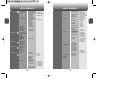
By pressing
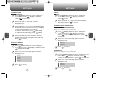
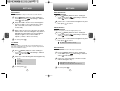
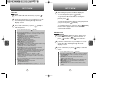
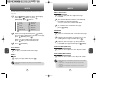
[OPTIONS], you can choose from the following:
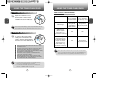
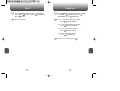
1. Self Portrait: Take a picture of yourself by checking the view
on the Sub LCD.
2. Resolution: To select a resolution for a picture.
(480x640/240x320/144x176/120x160)
3. Self Timer: To activate the camera’s timer function.
(Off/5 Seconds/10 Seconds)
4. Flash: To activate the flash function.
(Off/Auto Flash/Always On/On This Shot)
5. White Balance: To select white balance.
(Auto/Sunny/Tungsten/Fluorescent)
6. File Quality: To select a picture quality.(High/Normal/Economy)
7. Shutter Sound: To select a shutter sound.
(Shutter/Say “Cheese”/Ready!123/Silent)
8. Color Effect: To select color effect among the following:
(Normal/Gray/Sepia/Negative/Embossing)
9. Fun Frame: Select your favorite fun picture frame to decorate
your picture. (Flower/Mask/Sweet Heart/Fist-Punch/Sports/
Stars/Candle/Event/Roses/Lips/Sea/Sky/Snowman/
Tropics/Window/Off)
0. Display Icon: To select an icon “Display” or “Hide”.
*. Save location: This enables you to choose where to save.
(Phone / Card) This menu appears only when connected to a
Trans-Flash card.
User can control brightness and zoom directly by pressing the
Navigation Key up and down.
Navigation Up / Down: Zoom up/down
(Except 480x640 mode).
Navigation Left / Right: Brightness up/down( -2, -1, 0, +1, +2).
98
To save the picture, press
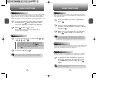
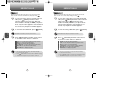
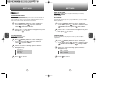
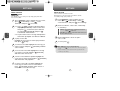
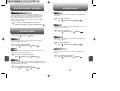
RECORD FLIX
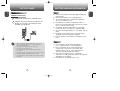
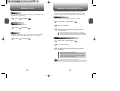
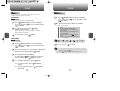
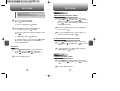
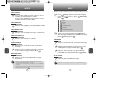
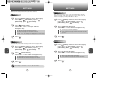
1 Press
[MENU] and then select “Get It Now”
menu and then press
“Get PIX & FLIX” or
press
and then select
“Record FLIX”.
2 Point the camera lens at your subject. You can
check the video framing through the main
display screen.
3 Press camera key or press
[REC] to take the
video.
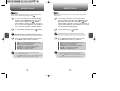
To view captured videos, press
[MY FLIX].
By pressing
[OPTIONS], you can choose from the following:
1. Self Portrait: Take a video of yourself by checking the view
on the Sub LCD.
2. Self Timer: To activate the camera’s timer function.
(Off/5 Seconds/10 Seconds)
3. Movie Light: To activate the flash function. (Off/Always On)
4. White Balance: To select white balance. (Auto/Sunny/
Tungsten/Fluorescent)
5. Mute/Unmute: Phone is mute or unmute while recording
a video.
99
C
H
5