1
Software
Installation
b
In the Run dialog box type
x:\platform\windows\win32s\disk1\setup↵
where x is the letter of the CD-ROM drive, and choose OK.
c
3
Follow the instructions on the screen. For more information
on Windows 32s, refer to your Windows documentation.
Install the CrownAdmin 3 software.
Windows NT and Windows 95
a
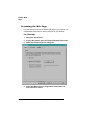
In the CD-ROM’s Welcome dialog box choose Install Printer
Utilities and Drivers.
b
In the Installation dialog box choose Next>.
c
In the Installation Type dialog box select Network/Custom
Installation, and then choose Next>,
d
In the Network/Custom Installation dialog box, select
CrownAdmin, if necessary, and then choose Next>.
Windows 3.1 and Windows for Workgroups
a
In Program Manager, from the File menu choose Run...
b
In the Run dialog box, type
x:\platform\windows\crnadm\install↵
where x is the letter of your CD-ROM, and choose OK.
4
Follow the instructions on the screen.
For additional information, choose the Help button.
5
Go to “Installing the CrownNet Print Utility for Windows” on
page 27.
Installing the CrownNet Print Utility for Windows
The QMS CrownNet Print Utility for Windows is compatible with all
CrownNet-equipped printers running with LAN Manager/LAN Server
enabled (Administration/Communications/xxxxxxxx NIC/CrownNet/
Lan Manager/Protocol menu (where xxxxxxxx is either Resident or
Optional)).
QMS CrownNet Setup Guide
27