1
CHAPTER 5.
24
SETTING UP YOUR DVS SYSTEM
5.3.4 Edit User Access Rights
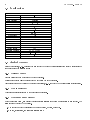
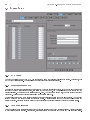
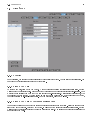
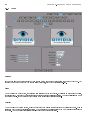
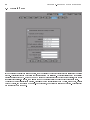
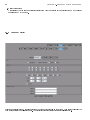
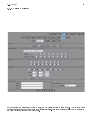
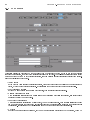
After your new user has been created, it will be selected in the list of users on the screen. You will want to setup what
this user can do on the system. You do this by assigning Server Rights to the user. These rights give you a ne-grained
ability to extend or limit access to your system. Below is a description of each right. Additionally, you will want to select
which cameras this user is able to access.
Server Rights
•
Access
The access right determines whether this user will have any access to this system. If this box is not checked, then
the user will not be able to login. This is useful if you would like to temporarily disable a users account without
deleting it.
•
Administrator
The admin right enables special Administrator features on the system. A user that has the Admin right is able to
control all aspects of the Setup Screen including System, Users, Camera, Date/Time, and Network. They are also
able to access the Utilities and Playback sections.
•
Export
The export right allows the user to use the Utilities->Export screen. From this screen, they will be able to export
video o the system. If you do not wish for users to take video o-site, you should disable this right.
•
Remote Viewing
The remote viewing right allows the user to view the cameras through a web-browser. Without this right, they will
get an access denied message.
•
PTZ Control
Can this user control any attached Pan/Tilt/Zoom cameras?
5.3.5 Delete a User from the system
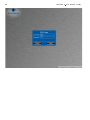
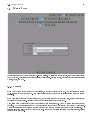
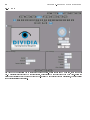
To delete a user, select the username in the User List on the screen. Next, click the Delete button. You will be prompted
to make sure you would like to delete the user. If you do, click the OK button. If this was a mistake and you do not
want to delete the user, click the Cancel button.
5.3.6 Applying Changes for a user
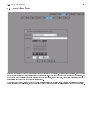
When you are nished making changes to a user, do not forget to apply those changes by clicking the Apply button. If
you forget to click the Apply button, the system will prompt you to make sure you do not intend to lose your changes.