1
3 Go!
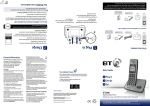
Your phone
Handset
Making calls
Right option button
Press to confirm the option
displayed on the screen above the
button, to delete or go back to the
previous screen.
In answer machine mode, deletes
current message playing.
In idle mode, press to enter the
Calls list.
Move up through menu options.
Increase incoming speech volume.
In idle mode, press to adjust the
ringer volume.
Left option button
Press to enter the main menu,
access sub menus and confirm options
shown on the display
above the button.
From the home screen, press to move
right to highlight new events. During
menu navigation, use to change
settings. In text entry mode, use to
move the cursor.
From the home screen, press to move
left to highlight new events. During
menu navigation, use to change
settings. In text entry mode, use to
move the cursor.
End a call.
Press and hold for 5 seconds to turn
handset on/off.
In standby mode
make/receive phone calls.
In talk mode switch handsfree on/off.
Enter Calls list, decrease incoming
speech volume and move down
through menu options.
From the home screen, press
to access a highlighted event
on the display: missed calls,
answer phone or text messages.
When answer machine message
playing, press to delete message.
In standby, press and hold to
dial BT 1571 or your stored
speed dial number.
When answer machine message
playing, press to repeat message
from the beginning.
When answer machine message playing,
press to skip forward to next message.
Press and hold to lock/unlock keypad.
Toggle between upper and lower
case characters.
When answer machine
message playing, press to skip
back to previous message.
Access your stored Contacts.
Recall for use with some BT calling
features and when connected to a
switchboard/PBX.
to
Speed dial buttons
In standby, press and hold to dial
a stored speed dial number.
Press and hold to turn the ringer
on or off.
Press then dial the phone number. Press to end the call.
Answering calls
If you have subscribed to Caller Display, the caller’s details will be displayed before you
answer (see below and also the full user guide online at bt.com/producthelp for details).
Lift the handset from the base or charger to answer incoming calls. If the handset is not
on the base or charger, press .
Mute
Select Mute by pressing the right option button during a call if you want to prevent the
caller hearing anything from your end. Select Unmute to return to your caller.
Contacts
Storing new contacts (up to 200)
From the home screen, press
.
Select Options. Add contact is highlighted, press Select.
Enter the name using the letters on the keypad. You may need to press the same button
a few times until the letter you want is displayed, for example, press
once for A, or
twice for B.
Press
and enter the home phone number. Press
to enter a mobile number and
then a work number if you want to. Press
again to select a ringtone. Select Save
when you’ve finished. The display will show Contact saved.
Dialling a contact
From the home screen, press
. Scroll
or
to display the entry you want and
press to dial.
Or, search alphabetically using the keypad to enter the first letter of the name you want
then scroll
or
to the exact entry and press to dial.
Caller Display and the Calls list
For Block calls, Caller Display and the Calls list, you must subscribe to a Caller Display
service for this feature to work. Your network provider may charge you for this service.
Finding your way around your phone
View and dial from the calls list (up to 50 incoming calls and 30 outgoing calls)
The number of new calls will be shown on the home screen when incoming calls
have been missed e.g. . You can clear the notification by viewing the calls list on
any handset registered to the base. The will show for missed calls, will show for
outgoing calls or
will show for incoming calls so that you can differentiate between
the types of calls in the calls list.
Press
or select Calls, then
or
to scroll through and view the list.
Your BT Elements 1K has an easy to use menu system. Each menu has a list of options.
To dial an entry, press
When the handset is switched on and at the home screen:
Save a Calls list entry to your contacts
1. Select Menu by pressing the Left option button to open the main menu.
Press
, then scroll
or
to highlight the entry you want and select Options.
Highlight Save number and press Select. You have two options:
To save as a new contact: highlight New contact and press Select. Highlight the type of
number, press Select. Enter the contact name and select Save. Or,
To add to an existing contact: highlight Add to contact, press Select. Scroll to highlight
the entry you want, press Select. Highlight the number type you want to save the
number under (home, work or mobile) and press Select.
The answer machine handset controls on buttons
work when a message is being played on the handset.
2. Use the
or
and
will only
button to scroll through the available menu options.
3. When the menu you want is displayed, select by pressing the Left option button
or press .
4. Use the
or
button to scroll through the available sub menu options.
When the sub menu you want is highlighted, select by pressing the Left option
button or press .
Select the Back option if you want to return to the previous screen.
To exit a menu and return to the home screen, press
.
If no buttons are pressed for 30 seconds, the handset returns to the home
screen automatically.
Answer machine
Set the answer delay
For compatibility with BT 1571 or another voicemail service make sure the answer
delay is set for your answer machine to answer before the voicemail service, e.g.
for BT 1571 do not set to more than 4 rings.
Select Menu, Answer Phone is displayed, press Select.
Press
until Settings is highlighted, press Select.
Press
to highlight either Ans. & record or Answer only and press Select.
Answer delay is displayed, use and to display the number of rings you want (0-10
or Time saver) and select Save.
When a new message is left you’ll hear a beep from the base. To change the alert
settings, enter the Menu and select Settings, Sound, then Alert tones.
4 Block calls
The BT Elements 1K blocks numbers in two separate ways to help you
avoid nuisance calls, firstly by type e.g withheld or international and also by
your choice of specific numbers (you can store up to 10 numbers of your own choice).
Select Menu, scroll
to Call Control and press Select.
Follow the instructions to set your PIN for the first time and select OK.
Incoming calls is displayed, press Select.
Press
to highlight Block calls and press Select. You now have 2 choices:
i) To block calls by type, when By call type is highlighted, press Select. Select Blocked
or Allowed for each of the call types by highlighting each one: International,
Withheld number, No Caller ID and Payphone using and , then select Save.
ii) To block calls by a specific number, press
to highlight By number and
press Select. You will enter the block calls list, highlight an Empty slot and select
Add. Enter the number you want to block (or you can select Options and select
a number from your contacts or calls list) then select Save.
Calls from numbers stored in your blocked calls list cannot leave a message on your
answer machine but calls blocked by call type can.
Please note, other products connected to the line are not compatible with this
feature and will still ring.
Help Most problems can be fixed with a few simple checks.
Problem
No dial tone or line cord error
message displayed on-screen
Poor speech quality
when the entry is highlighted.
Your answer machine is on and ready to record messages. The features can be accessed
via the handset Answer Phone menu.
Recording your own outgoing message
Select Menu, Answer Phone is displayed, press Select.
Outgoing msg is highlighted, press Select.
Press
or
to highlight the outgoing message mode you want: Ans. & record or
Answer only and press Select.
Record message is highlighted, press Select. Follow the voice prompt to record your
message and select Save when you’ve finished. Your message will be played back to you.
Select OK if you’re happy with it (or delete it by selecting Delete).
Battery icon flashing
and Battery low
displayed on screen
Using broadband on the same
phone line?
Battery
Low
Can’t achieve full 1km range
Find out more
Solution
Only use the cables and batteries supplied.
Make sure both the mains power adaptor cable and
telephone line cord are plugged into the correct sockets.
Make sure the product is not located too close to other
electrical appliances. This can also help improve the
handset range from the base.
The battery charge is very low. Make sure you charge the
batteries for 24 hours before use to ensure maximum
battery performance.
Make sure you plug the phone into the wall
socket via an ADSL microfilter (not supplied),
ADSL
otherwise you may have problems with
microfilter
this product and your broadband service.
If you use BT Infinity, you will not need to use an ADSL microfilter.
For other types of broadband, please check with your
provider if a microfilter is required.
1km range is achieved in ideal conditions. Obstacles
between the handset and the location base, such as
buildings, will affect the range performance.
• Frequently Asked Questions are available at bt.com/producthelp
• If you’d like more detailed instructions, a full user guide is available to
download from bt.com/producthelp
• If you cannot find the answer to your problem in the full online user guide, then
please call our free Helpline on 0800 145 6789*. Our dedicated advisors are more
likely to be able to help you than the retailer where you made your purchase.
• This document is also available in other formats, such as Large print, Braille
and Audio CD. If you would like a copy, please call 0800 145 6789*.