1
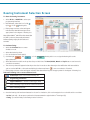
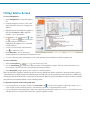
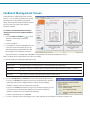
Hearing Instrument Selection Screen
To detect the hearing instruments:
1. Select Hi-Pro or NOAHlink to select your
programming interface.
2. Beside Detect, select the icon for left
right
or both
hearing aids.
,
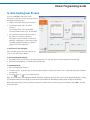
3. Fitting range overlays on the audiogram
indicate if the detected hearing aids are
appropriate for the degree of hearing loss.
Note: When Moda™ 10A BTE or Directional (No
VC) BTE is selected, the overlay alternates
between fitting ranges for slim tube and
earmold.
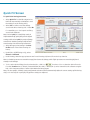
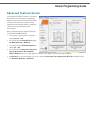
To simulate a fitting:
1. Select the Simulate button to enter
simulation mode.
2. Select the desired product.
3. Choose the desired shell style(s).
4. Click the right
appropriate ears.
, left
, or both
hearing aids icon to assign the hearing aids to the
5. Select the desired model from the product list provided. Note: The Brand, Model, Matrix and Style buttons can be used to
sort the list as needed.
6. The chosen product will appear below the product list. A note above the selected product will further indicate available
options such as WiFi Mic or slim tube availability. Use the eraser button
to remove a selection if desired.
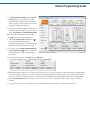
7. Fitting range overlays on the audiogram indicate if the selected hearing aids are appropriate for the degree of hearing loss.
Select the following icons to access additional tools:
Product Spec data for the selected hearing aid
Programming Information
Support Materials for all Unitron Hearing products
Unitron Hearing’s regional office contact information
Unitron Hearing web site
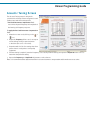
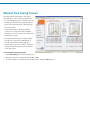
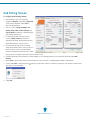
8. Once the hearing aids have been detected or chosen for simulation, click on the navigation bar to the left and choose either:
• In Situ (optional) – allows pure tone threshold measurement through the Unison™ hearing aid(s).
• Fitting – proceeds directly to the fitting screens for Unison.