1
Setting Up and Using Remote Viewing
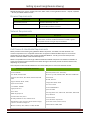
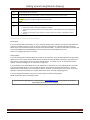
Service Response Camera Not
Registered
Unknown Error
One or more of the cameras being updated has not yet been registered
An unknown error has occurred. Please check your event log and/or contact WiLife.
Service-oriented indicators include Service Response Not Authorized, Service Response Expired, Service
Response No Registered Product, Service Response Disk Full, Service Response Limit Reached, Service
Response Not Implemented, etc.
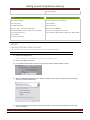
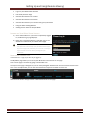
STREAMING STATUS INDICATORS
The Streaming Status field specifies whether or not someone is actively viewing your cameras.
Indicators
Active - Direct Mode
Active - Relay Mode
Inactive - No Client
Descriptions
Someone is actively/currently viewing your live cameras in Direct mode - the
streaming video feed is channeled directly to you because your system’s firewall
settings aren't blocking the stream and the Internet capability is powerful.
Someone is actively/currently viewing your live cameras in Relay mode - the
streaming video feed is channeled through WiLife’s network to you.
Nobody is actively viewing your live cameras.
USING THE VIDEO VIEWING WINDOW
online.wilife.com > Camera name or icon
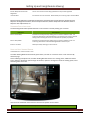
The Video Viewing Window automatically opens when you click on a camera's name or icon from the My
Cameras page.
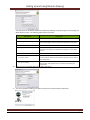
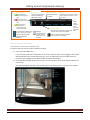
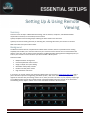
As the following example shows, the Video Viewing Window consists of a viewing panel, additional camera
icons, options to View All or Cycle through all cameras, options to change the size of the viewing panel, and a
streaming video status bar.
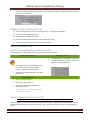
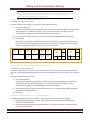
Here are some additional notes about the features and options on the screen:
Components of the Viewing Window
Page 13