1
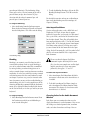
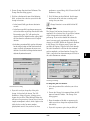
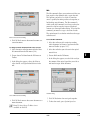
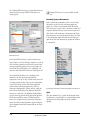
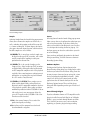
2. Choose Repair Clicks from the DSP menu or use
Repair Click and skip step 3.
effects.
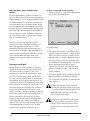
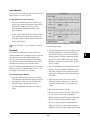
To use Reverse Boomerang:
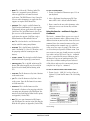
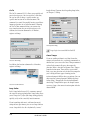
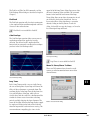
3. Click the Repair button. Then click the Audition
button to make sure the click was adequately
repaired. If it was not adequately repaired, use the
Undo button, modify the smoothing factor or
repair size and click the Repair button again.
1. Select the audio that you wish to process. If you
wish to select the entire document, choose Select
All from the Edit menu (-A).
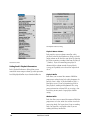
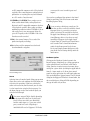
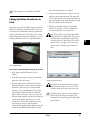
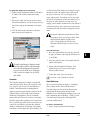
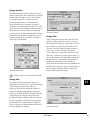
2. Choose Reverse Boomerang from the DSP menu.
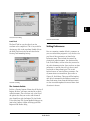
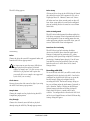
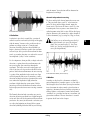
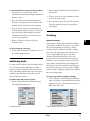
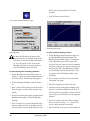
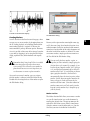
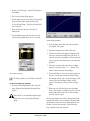
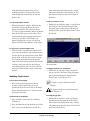
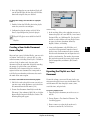
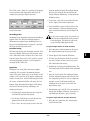
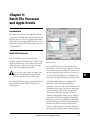
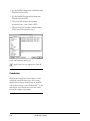
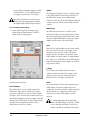
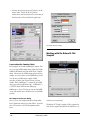
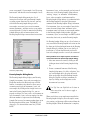
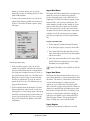
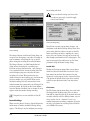
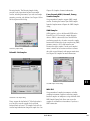
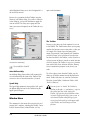
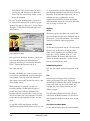
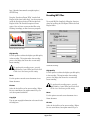
3. In the dialog that appears, select the amount of
reversed sound you wish to mix back into the
original, with 100% being entirely reversed, and 0%
being unchanged.
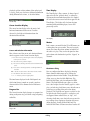
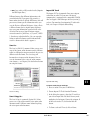
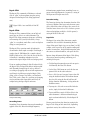
You may need to lower the detection setting in the
Repair Clicks dialog to find some clicks, depending
upon their severity. Be careful not to lower the
detection setting dramatically — lower it gradually for
the best results.
Repair Clicks is not available in Peak LE.
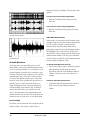
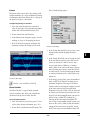
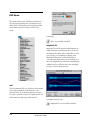
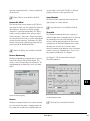
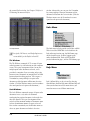
Remove DC Offset
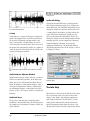
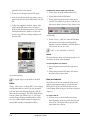
This function allows you to remove any DC Offset in
your audio file. Peak scans the audio for DC offset and
then removes it. Peak will scan the left and right
channels of a stereo file independently. DC Offset is
usually caused by problems in the analog to digital
conversion process. The result is that the waveform is
not centered on the base line—it is offset either higher
or lower than the center line. The Remove DC Offset
function is particularly useful for preparing audio for
processing with the RealAudio Encoder.
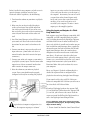
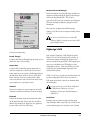
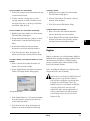
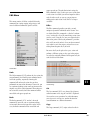
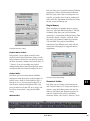
The Reverse Boomerang dialog
4. Click OK. Peak processes the audio. To hear the
results, press the Spacebar to initiate playback.
To use Remove DC Offset:
1. Select the audio that you wish to process. If you
wish to select the entire document, choose Select
All from the Edit menu (-A).
2. Choose Remove DC Offset from the DSP menu.
Peak will scan the audio, and automatically remove
any DC offset that might be present.
Remove DC Offset is not available in Peak LE.
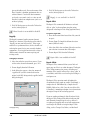
Reverse
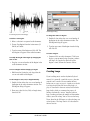
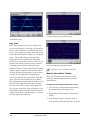
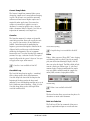
The Reverse command reverses the current selection.
In a reversed selection, the last sample becomes the
first sample, the second-to-last sample becomes the
second sample, and so-forth. The effect is similar to
playing a record or cassette tape backwards.
To reverse a selection:
Reverse Boomerang
The Reverse Boomerang command mixes a reversed
copy of the selected audio with the original. This
creates a variety of interesting and useful results. Try
using Boomerang on drum loops, voice, and sound
110
Peak User’s Guide
1. Select the audio that you wish to reverse. If you
wish to select the entire document, choose Select
All from the Edit menu (-A).
2. Choose Reverse from the DSP menu. Peak
reverses the selected audio. To hear the results,
start playback.