1
Shadow Tracker ™ Professional
Premier Base - Help
GETTING STARTED
Using Help | Contents | Index
2
Quick Start Setup
The Quick Start Setup is designed to provide an overview of all the steps necessary to get your
Shadow Tracker Professional System up and running. It is important that the steps be completed in
the order that is outlined below and that no steps are skipped. If you are unsure how to complete
a particular task, click the link provided to view the Help File instructions for that task.
Step 1 - Install the Shadow Tracker Professional Software on your Computer
IMPORTANT: DO NOT install a Tracking Unit into a vehicle before adding it to the software.
Step 2 - Configure the Software and Tracking Units
1
2
3
4
5
6
7
8
9
10
Set the Week Ending Date (Time and Inventory modules only).
Create Company/Branch Records. Company and Branch Information
Create Employee Records. Employee Records
Create Vehicle Records. Vehicle Records
Create Vehicle Issue Records. Vehicle Issue Records
Set the Com Port on the computer. Setting the COM Port
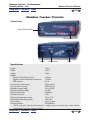
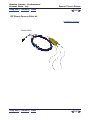
Connect the Tracking Unit to the computer. Connecting a Tracking Unit to a Computer
Add the Tracking Unit to the database. Adding a Tracking Unit
Assign each Tracking Unit to a Vehicle Record. Assigning a Tracking Unit to a Vehicle Record
Disconnect the Tracking Unit from the computer.
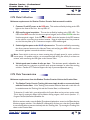
Step 3 - Setup and Connect the Premier Base Radio
1 Connect the Premier Base Radio to the computer. Connecting the Premier Base Radio
2 Set the Premier Base COM Port. Set Premier Base COM Port
3 Set the Base Unit Configuration Settings. Set Base Unit Configuration Settings
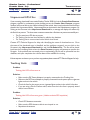
Step 4 - Install the Tracking Unit into aVehicle
1 Install the Tracking Unit into vehicle. Connecting a Tracking Unit in a Vehicle
Once the Tracking Unit’s have been installed into the vehicles, you will be ready to begin collecting
and processing GPS data. Whenever a Shadow Tracker Premier Tracking Unit comes within range
of the Premier Base Radio, the Tracking Unit’s GPS data will be automatically downloaded and
stored on the Premier Base. Then, after the GPS data has been downloaded from the Premier
Base and processed into the database, you will be able to view the GPS data as Historical Tracks
and create Reports.
Using Help | Contents | Index
2