1
Charged Aerosol Detectors
Corona Veo and Corona Veo RS
6.3.2 Direct Control
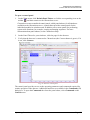
With direct control, you select operating parameters and commands in the Commands
(F8) dialog box. Direct commands are executed as soon as they are entered. For routine
operation, most parameters and commands are available also on a control panel.
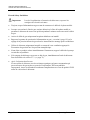
To open the Commands dialog box for the detector
1.
Open a control panel (any panel is possible). To open a control panel, open the
Chromeleon Browser and double-click a control panel in the Dionex
Templates/Panels folder.
2.
Connect the control panel to the timebase in which the detector is installed. On the
Control menu, select Connect to Timebase, and then select the timebase on the
Timebase tab. (The Control menu is visible only when a control panel is open.) For
information about the Timebase dialog, click Help.
3.
Press the F8 key or select Command on the Control menu.
4.
To see the parameters and commands that are available for the detector, click the plus
sign next to CAD.
The commands and parameters available in the dialog box vary, depending on the
♦ Chromeleon version
♦ Options selected for the detector in the Properties dialog (→ page 81).
♦ Display filter level (Normal, Advanced, or Expert)
5.
Change the display filter level if necessary. Right-click in the commands list and select
the filter level on the menu.
Fig. 21: Commands dialog box
6.
Verify that the detector is connected to Chromeleon. If it is not, select Connect to
connect the detector.
For a list of the commands and properties that are supported for the detector, see the
Chromeleon Help. In addition to the detector commands and parameters, the Commands
(F8) dialog box provides access to all of the commands and parameters available for all
devices that are installed in the selected timebase.
Page 86
Operating Instructions