1
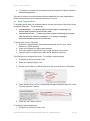
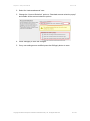
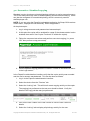
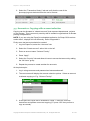
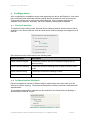
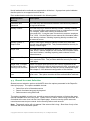
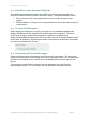
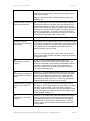
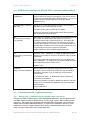
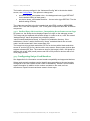
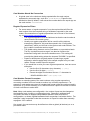
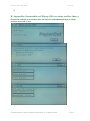
PaperCut - Sharp OSA Manual 2014-12-24 Not all authentication methods are supported on all devices. A grayed-out option indicates that the option is not supported on this device. Each authentication method is discussed in the following table. Authentication Method Description Username and password The user may use their domain/network username and password to log into the device. Identity number The user may log in with their identity number. Identity numbers are convenient when usernames are long or cumbersome to enter. For example, rather than entering a username like ‘john.smith.001’, it may be more convenient to enter an employee ID of ‘1234’. See the PaperCut user manual for information about user identity numbers, including importing identity numbers from an external source. Identity number -> Require PIN When a user logs in with their identity number, they must also provide their associated PIN. This provides additional security for identity number logins. Swipe card The user may log in by swiping a card (e.g. magnetic strip, smart card, RFID). See the PaperCut user manual for information about user card numbers, including importing card numbers from an external source. Swipe card -> Require PIN When a user logs in by swiping a card, they must also provide their associated PIN. This provides additional security for swipe card logins. Swipe card -> Enable self-association with existing user accounts Users can swipe cards previously not used or registered at the device with PaperCut and will be prompted for their username and password. The swipe card can then be used at subsequent logins. See chapter 5.4 for advanced configuration of this function. Automatically login as user Specifies that this device should always automatically log in as the given user. This option overrides all other authentication methods Description of authentication methods 4.3 Shared Account Selection Shared account selection options at the MFD mirror the options presented in the PaperCut client print popup. The options available include: Select from a list of shared accounts Search for shared accounts by keyword Select account using PIN/Code The options available to each user, as well as account security access, will mirror the same options available when the user prints. “Select from list” and/or “Select using PIN/Code” are controlled at the user–level via the User Details page. Account security (which accounts users have access too) are control via the Security tab on each account. Note: The search option will only appear if the account list is long. Short lists of only a few accounts will not list a search option. Copyright © 2009-2014 PaperCut Software International Pty. Ltd., All Rights Reserved. 21 of 38