1
Managing and Configuring Domains
Managing and Configuring Domains
The DOMAINS-->Domain Manager page lets you add new domains and make changes on a perdomain basis.
Adding New Domains
If your Barracuda Spam Firewall is responsible for filtering messages for more than one email server
and domain, you need to enter the domains associated with each server on the DOMAINS-->Domain
Manager page.
If you have the Barracuda Spam Firewall 400 or 600, you can also set spam scoring, quarantine type and
spam/virus checking on a per-domain basis.
To add and configure domains:
1. Go to the DOMAINS-->Domain Manager page.
2. In the Advanced Domain Configuration section, enter the domain associated with your other mail
server, and click Add Domain.
The domain appears in the table.
3. Click Edit Domain next to the domain you just added.
The Domain Edit page opens.
4. Configure the domain settings, as described in Editing Domain Settings on page 54.
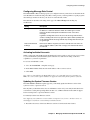
Editing Domain Settings
To edit the settings for a specific domain:
1. On the DOMAINS-->Domain Manager page, click Edit Domain next to the domain to edit.
The Domain Edit page opens.
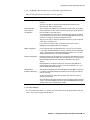
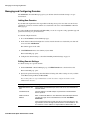
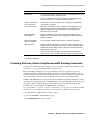
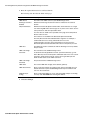
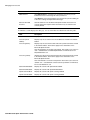
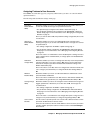
2. Specify the per-domain settings described in the following table. These settings are only available
on the Barracuda Spam Firewall 400 and 600.
Note: Setting values on a per-domain basis override the values configured elsewhere in the
administration interface.
Setting
Description
Destination Server and
Port
The hostname and destination port of the mail server associated with the
selected domain.
Use MX Records
Controls whether or not MX lookups are performed on the Destination
Server specified
Valid Test Email
Address
Enter a valid email address to test whether the Barracuda Spam Firewall
can filter messages for the selected domain, and click Test SMTP
Connection.
Then check the Message Log and verify the test message appears in the
log and make sure the message is delivered to the test email address. The
test email has a "from'' address of smtptest@barracudanetworks.com.
54 ■ Barracuda Spam Firewall User’s Guide