1
Using Templates
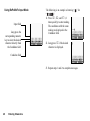
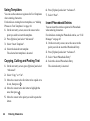
You can use the sentences registered in Text Templates
when entering characters.
For details on creating the text template, see “Adding
Phrases to Text Templates” on page 84.
1. On the text entry screen, move the cursor to the
point you wish to insert the template.
2. Press [Options] and select “Advanced”.
3. Select “Insert Template”.
4. Select the desired text template.
The selected text template is inserted.
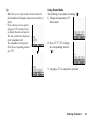
Copying, Cutting and Pasting Text
1. On the text entry screen, press [Options] and select
“Advanced”.
2. Select “Copy” or “Cut”.
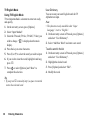
3. Move the cursor to the first letter to be copied or to
be cut, then press
.
4. Move the cursor to the last letter to highlight the
area, then press
.
5. Move the cursor to the point you wish to paste the
letters.
44
Entering Characters
6. Press [Options] and select “Advanced”.
7. Select “Paste”.
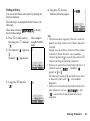
Insert Phonebook Entries
You can insert the entries registered in Phonebook
when entering characters.
For details on creating the Phonebook entries, see “Call
Manager” on page 45.
1. On the text entry screen, move the cursor to the
point you wish to insert the Phonebook Entry.
2. Press [Options] and select “Advanced”.
3. Select “Insert Phonebook Entry”.
4. Select the desired Phonebook Entry.
The selected entry is inserted.