1
Receiver Description
English
Front View
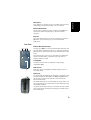
Power Key
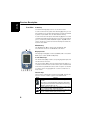
Use the Power key [1] to turn on or off the receiver.
To turn on the receiver, press the Power key [1] until you can
feel a vibration in your hand, meaning the receiver has started
a power-on procedure. You can then release the key.
To turn off the receiver press the Power key [1] until a sound
is heard and a warning message pops up on the screen asking
you to confirm the power shutdown request. Tap Yes on the
screen. A two-tone sound can then be heard just before the
receiver shuts down.
Windows key
[8]
[9]
The Windows key [2] is used to give immediate and
unconditional access to the Windows Start menu.
Display Screen
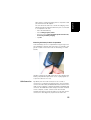
The display screen [3] is a 3.5-inch, QVGA, 256-color (18-bit
RGB) touch screen (240 x 320 pixels).
[3]
Scroll / Enter keys
The Enter button [4] is used to accept highlighted input and
initiate various functions.
The Scroll button [5] is the ring around the Enter button. It
is used to move the cursor on the screen, from one data field
to the next on a parameter screen, from one option to another
in a menu, from one geographical location to another on a
map screen.
[1] [7] [4] [5] [2] [6]
Function keys
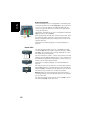
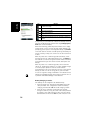
The receiver is fitted with four function keys [6]. The specific
function of each of them is given in the table below.
Button
8
Function
The keypad includes two of these buttons, one on the right, the other
on the left.
Each of them is a convenient alternative to tapping on the functions
appearing just above in the task bar at the bottom of the screen (e.g.
Notifications, Contacts, Menu, Log, etc.).
In Ashtech applications with a map screen displayed, use this button to
zoom in. In Windows Mobile, displays the Start menu.
In Ashtech applications with a map screen displayed, use this button to
zoom out. In Windows Mobile, displays the Phone screen.