1
EN
3D charts
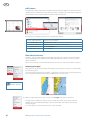
3D charts are now also available for Insight.
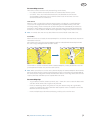
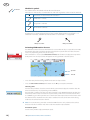
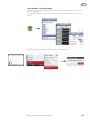
There are two 3D view options available:
• Rotate - default view keeping the boat in center on the chart panel
• Pan - allows you to move the 3D chart view away from the vessel
You toggle between these two options by tapping the pan and rotate icons. Active option is
indicated with red icon.
You return to default Rotate view by tapping the Return to vessel panel button.
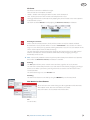
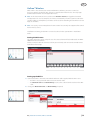
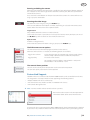
Rotating the 3D chart
In this view the camera position is fixed, and the camera can only be rotated and tilted.
Be default the vessel’s position will be in center if Look Ahead is not selected. The camera
angle is as seen from your eye position, looking toward the vessel. The vessel’s rotation on the
chart is defined by the chart orientation settings.
You can change the camera’s tilt angle by dragging your finger on the screen with vertical
motions. You rotate the camera around it’s own vertical axis by dragging your finger
horizontally on the screen.
¼¼ Note: You can only rotate the camera if you have panned away from default vessel position,
that is when the Return to vessel panel button is available.
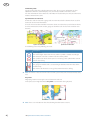
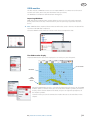
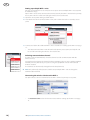
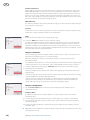
Panning
The Pan option allows you to view the entire 3D chart, regardless of vessel position.
You move the camera away from the vessel and around in the chart by dragging your finger
on the screen. When you remove your finger from the screen the view will remain in the
selected position.
The camera’s tilt angle is as set in Rotate view.
Zooming
You zoom in and out on a 3D chart by using the IN/OUT keys or the rotary knob.
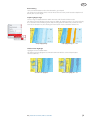
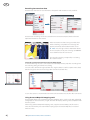
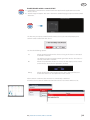
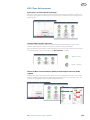
New Navionics chart features
There has been some minor changes to the organization of the Navionics
chart option menu, and some new features are added.
Only new features are described in this Addendum.
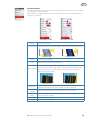
3D
See “3D charts”.
NSS | Addendum for RTM-2, RTM-2.5 and RTM-3
|3