1
3
Chapter 3
TROUBLESHOOTING
TROUBLESHOOTING
If a problem or question arises, try to solve the situation using the following information before contacting your
authorized SHARP dealer.
Image transmission problems are explained here. For image scanning problems, see the operation manual for the machine.
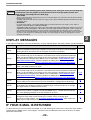
Problem
Cause and solution
The selected "Scan Size" setting is smaller than the actual original size.
The scanned image is clipped.
→ Set the "Scan Size" to the actual original size (p.11) and make sure that the
original is placed in the correct orientation (p.20).
If you intentionally selected a size setting smaller than the actual original size,
take into consideration the part of the original that you wish to scan when
placing the original. For example, if the actual size is 8-1/2" x 11" and you
selected 5-1/2" x 8-1/2" for the size setting, place the original so that the part
that you wish to scan is within the 5-1/2" x 8-1/2" area at the left, center of the
glass.
The viewer program used by the recipient does not support the
format of the received image data.
The received image data cannot be
opened.
When the same file name is used for two
successive Scan to FTP transmissions,
the second file is not sent.
→ Try selecting a different file type (TIFF / PDF / JPEG) and/or a different
compression format (None, MH (G3), MMR (G4)) when sending the image
data.
Otherwise, have the recipient use Sharpdesk LT or a viewer program that supports the
above combinations of file types and compression formats.
The first file may still remain in the cache of the file server client. Disable
use of the cache in the client software.
There is a mistake in the stored destination information or the wrong
destination was selected.
The recipient does not receive
transmitted data.
→ Make sure that the correct destination information is stored. If there is a
mistake, correct it (p.16).
Make sure that the correct destination has been assigned to the [SCAN MENU]
key (p.17).
* If delivery by e-mail (Scan to E-mail) is unsuccessful, an error message
such as "Undelivered Message" may be sent to the designated
administrator's e-mail address. This information may help you determine
the cause of the problem.
Check the Web page to see if a limit has been set for the size of image
files sent using Scan to E-mail (the factory default setting is "Unlimited").
A limit can be set from 1 MB to 10 MB. Consult the administrator of the
Web page to select a suitable limit (p.8).
The recipient does not receive data
sent by e-mail (Scan to E-mail).
Transmission takes a long time.
The amount of data that can be sent in one e-mail transmission is
sometimes limited by the administrator of the mail server. Even if the
amount of data sent is within the limit setting explained above, if it exceeds
the limit set by the administrator of the mail server, the data will not be
delivered to the recipient.
Decrease the amount of data sent in the e-mail transmission (reduce the
number of pages scanned). (Ask your mail server administrator what the
data limit is for one e-mail transmission.)
When there is a large amount of image information, the data file is also
large and transmission takes a long time.
- 21 -
3