1
The Main and Session outputs come from the
CONNECTIONS
same “Main Mix” signal. Main and Session
outputs each have their own Level control.
Because these signals are identical, you may
use either of these outputs as the “Main” output
CALIBRATING
Scratch Live
if the other cable type is needed for the amplifier.
Rane recommends balanced 1/4” TRS wiring
for the strongest signal and rejection of hum and
noise. If your cable to the destination is less than
10 feet (3 meters), you can often get away with
an unbalanced cable. See the RaneNote “Sound
System Interconnection” at rane.com for cable
wiring recommendations.
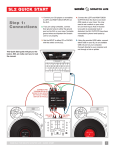
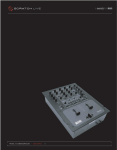
This guide will help you get your decks
connected and music playing. Leave the
power off until your decks and amplifiers are
connected.
Starting the Software
signal, there is no guarantee of what state that
signal will be in by the time the software gets to
interpret it. Therefore, Scratch Live needs to be
able to handle a wide range of signals, and be
Analog Inputs
configurable to use them optimally. Calibrating
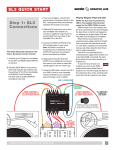
1. Connect your Left deck’s RCA cables to
is just configuring the software to your situation.
Analog Input 1.
Calibration is equally important for both vinyl
• If it’s a CD player, select CD with the switch
and CD users of Scratch Live.
above the input jacks.
There are two parts to the Scratch Live control
• If it’s a turntable, select PH (Phono) with
signal: The directional tone, and the noise map.
the switch above the input jacks. Secure the
ground wire to a Phono Ground terminal.
2. Set the SOURCE selector for PGM 1.
THRU 1 plays directly from your deck.
Listening to the control vinyl, the directional tone
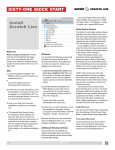
Close all other programs on your Mac or PC.
is the 1 kHz tone. The noise map sounds like
Connect a USB cable from your computer to the
random noise over the top of the tone.
Sixty-One and turn it on. Running Scratch Live
The directional tone provides the current
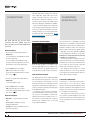
for the first time, you will see the screen above.
speed and direction of the record, while the
To play from the Left Virtual Deck in Scratch
Live, choose
1.
3. Connect your Right deck’s RCA cables to
Analog Input 3.
• Select CD or PH as in step 1.
4. Set the SOURCE selector for PGM 2.
THRU 3 plays directly from your deck.
To play from the Right Virtual Deck in Scratch
Live, choose
Since Scratch Live is controlled by an analog
2.
Analog Outputs
• Main Out is on a pair of balanced ¼˝ TRS
jacks.
• Session Out is available on a pair of
noise map tells the software precisely where on
USB Control Source
the record the needle is currently.
The default Inputs for decks performing Digital
Vinyl Simulation (DVS) are Inputs 1 and 3, but
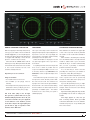
The Noise Threshold
you can change this. Analog Input 1 or 2 may
A threshold is a lower limit, below which a
be selected in Scratch Live software as the DVS
process will not occur. In the case of Scratch
signal for the Left Virtual Deck. Analog Input 3 or
Live, the noise threshold is the limit below which
4 may be selected in software as the DVS signal
the input signal will not be interpreted as control
for the Right Virtual Deck.
signal; in other words if it’s below the threshold,
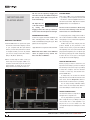
To select the control sources in Scratch Live,
it is considered noise and ignored.
click the SETUP button at the top of the Scratch
This setting is necessary because a stylus is
Live screen. In the Hardware > General tab,
very sensitive, and will inevitably pick up noise
verify that Control Source > PGM 1 is set to “1”.
from the environment as well as the signal on the
This will be your Left Virtual Deck. verify that
record, especially in the noisy environment of a
Control Source > PGM 2 is set to “3”. This will
live show.
be your Right Virtual Deck.
unbalanced RCA jacks.
• Headphones output is available on both ¼˝
TRS and 3.5 mm jacks.
2
RANE SIXTY-ONE FOR SERATO SCRATCH LIVE • QUICK START 2.4