1
7: LAT Configuration
The EZWebCon configuration software is the easiest way to configure the ETS. The
following sections cover print configuration methods for LAT hosts.
Note: The ETS needs an IP address before you can use EZWebCon. .
To use LAT you must obtain a LAT license from your dealer or Lantronix and use the
Set/Define Protocol LAT License command on your ETS. LAT print queues can be
created by printing to a port or printing to a service. Printing directly to a port requires
no ETS configuration.
Printing Directly to a Port
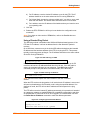
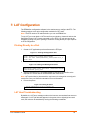
1. Create a LAT application port that references the ETS port.
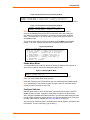
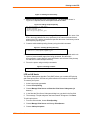
Figure 7-1. Creating LAT Application Port
$ RUN SYS$SYSTEM:LATCP
LATCP> CREATE PORT LTAnnn/APPLICATION
LATCP> SET PORT LTAnnn/NODE=ETS_xxxxxx/PORT=Port_n
LATCP> EXIT
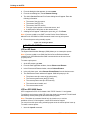
2. Create and start a print queue that uses the LAT application port.
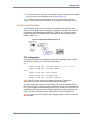
Figure 7-2. Creating and Starting Print Queue
$
INITIALIZE/QUEUE/START/ON=LTAnnn:/PROCESSOR=LATSYM
/RETAIN=ERROR queue_name
3. Add the commands to the SYS$MANAGER:LAT$STARTUP.COM file so the
required LAT devices will be recreated after each host reboot.
Note: LAT terminal device characteristics may have to be changed to correctly print
certain files. See your VMS documentation for more information.
4. Print to the queue.
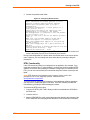
Figure 7-3. Printing to Queue
$ PRINT/QUEUE=queue_name filename.txt
LAT Host Troubleshooting
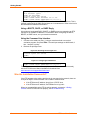
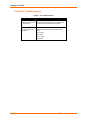
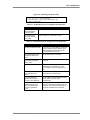
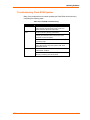
By default, the LAT error message codes on the host are not translated into text error
messages. If a LAT job fails and appears in the queue with an eight-digit hex result
code, the code can be translated by issuing the following commands:
ETS Installation Guide
42