1
ar_m318_uk_cpy.book
43 ページ
2007年1月15日 月曜日 午前11時36分
CONVENIENT COPY FUNCTIONS
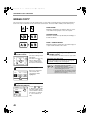
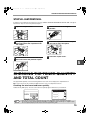
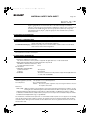
DUAL PAGE COPY
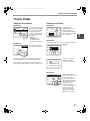
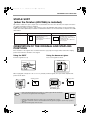
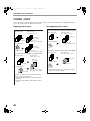
The dual page copy function produces separate copies of two adjoining pages on the document glass. It is
especially useful when copying books and other bound documents.
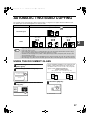
[Example] Copying the right and left pages of a book
Book original
Dual page copy
• A reduction setting can be selected when using
the dual page copy function, however, an
enlargement setting cannot be selected.
• The dual page copy function can only be used
when copying from the document glass. The
RSPF cannot be used.
• B5 or A4 (8-1/2" x 11") paper can be used.
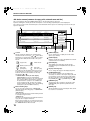
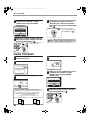
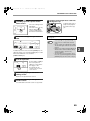
1
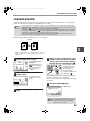
Touch the [DUAL PAGE COPY] key in
the special modes screen.
3
The [DUAL PAGE
COPY] key is highlighted
to indicate that the
function is enabled, and
the dual page copy icon
(
) will appear in the
screen.
1/2
DUAL PAGE
COPY
When copying book originals:
When copying a thick book, press down gently on the
book to flatten it against the document glass.
MULTI SHOT
4
2
Touch the [OK] key in the special
modes screen.
OK
DUAL PAGE
COPY
3
AUTO
A4
PAPER SELECT
You will return to the
main screen of copy
mode.
0
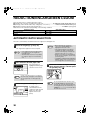
Make sure that B5 or A4 (8-1/2" x 11")
size paper is selected.
1/2
5
If B5 or A4 (8-1/2" x 11")
size paper is not
selected, touch the
[PAPER SELECT] key to
select B5 or A4
(8-1/2" x 11") paper.
100%
COPY RATIO
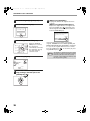
Select the number of copies and any
other desired copy settings, and then
press the [START] key ( ).
Place the originals on the document
glass. (p.22)
ACC.#-C
Index B5, A4
(81/2x11
)
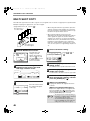
This page
is copied
first.
Centre line of
original
Note
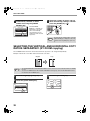
• To cancel the dual page copy function,
touch the [DUAL PAGE COPY] key in the
special modes screen. (The key will no
longer be highlighted.) (See the screen of
step 1.)
• To erase shadows caused by the document
binding, use the edge erase function (p.42).
(Centre Erase and Edge + Centre Erase
cannot be used with the dual page copy
function.)
43